


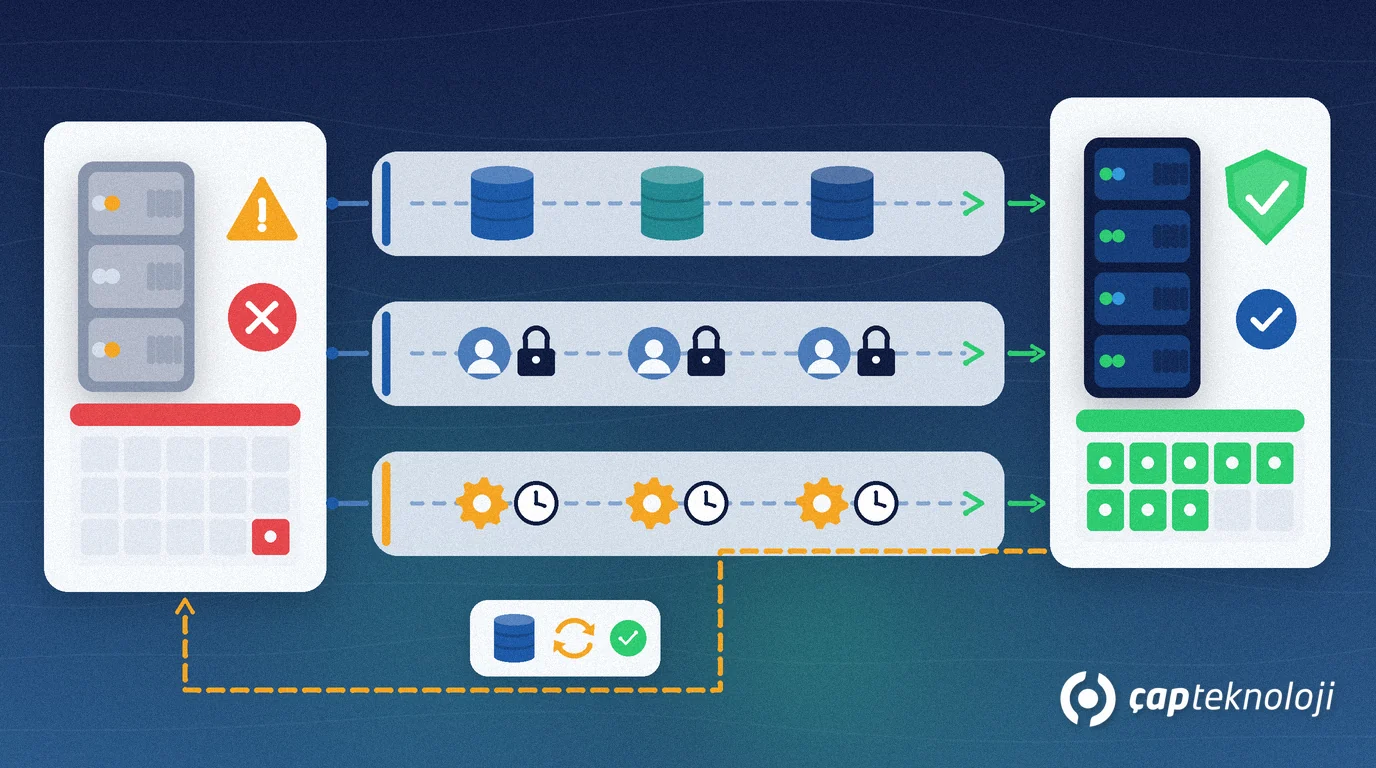
In short: A SQL Server upgrade moves your database engine to a newer version that Microsoft still ships security updates for. For SMEs the safe route is to check the inventory and application compatibility first, prefer a new installation over upgrading the existing server in place, rehearse the restore in a test environment and write the rollback plan before anything changes.
In many businesses the ERP, accounting, warehouse and reporting applications all run on a single SQL Server that was installed years ago. Because it keeps working, the version question gets postponed until a software update demands a newer release, an audit flags “unsupported software” or the server hardware is due for replacement. Rushed at that point, a weekend upgrade can turn into an ERP that will not start on Monday morning.
This guide covers the support timeline, choosing an upgrade method, a step-by-step plan and the checks to run once the upgrade is done.
Why is an out-of-support SQL Server a risk?
Once a SQL Server version reaches the end of extended support, Microsoft no longer releases regular security updates for it; patches are only available through the paid Extended Security Updates (ESU) program. The database keeps running, but newly discovered vulnerabilities stay open, software vendors may stop supporting the old version in their next releases and there is no official support to call when something breaks. For a company processing personal data under GDPR or KVKK, an unpatched database server is also a weak spot in its technical safeguards.
According to Microsoft’s product lifecycle pages, extended support ends on these dates:
| Version | End of extended support | Status (October 2026) |
|---|---|---|
| SQL Server 2014 | 9 July 2024 | Ended |
| SQL Server 2016 | 14 July 2026 | Ended |
| SQL Server 2017 | 12 October 2027 | Less than a year left |
| SQL Server 2019 | 8 January 2030 | Supported (mainstream support ended 28 February 2025) |
| SQL Server 2022 | 11 January 2033 | Supported |
| SQL Server 2025 | 6 January 2036 | Latest version |
To see which version you run, execute SELECT @@VERSION; in SQL Server Management Studio (SSMS).
In-place upgrade or new installation?
Microsoft describes three approaches: an in-place upgrade, migrating to a new installation, and a rolling upgrade for high-availability setups with several servers. For most single-server SMB environments the choice is between the first two:
- In-place upgrade: Setup installs the new version over the existing instance. It is the easiest route, but it needs downtime, the old instance no longer exists afterwards and falling back takes longer. It is not supported from every source version either: to upgrade in place to SQL Server 2022, SQL Server 2016 must be on SP3 or later.
- Migration to a new installation (side by side): The new version is installed on a separate server, often with new hardware and a current operating system, and the databases are moved by backup and restore. The old server stays untouched, so rollback is simple and the hardware and OS refresh is handled in the same project.
Microsoft’s guide to choosing an upgrade method also notes that the new-installation approach reduces risk and downtime compared with an in-place upgrade. That is why we recommend it for production, especially when the current server runs on ageing hardware.
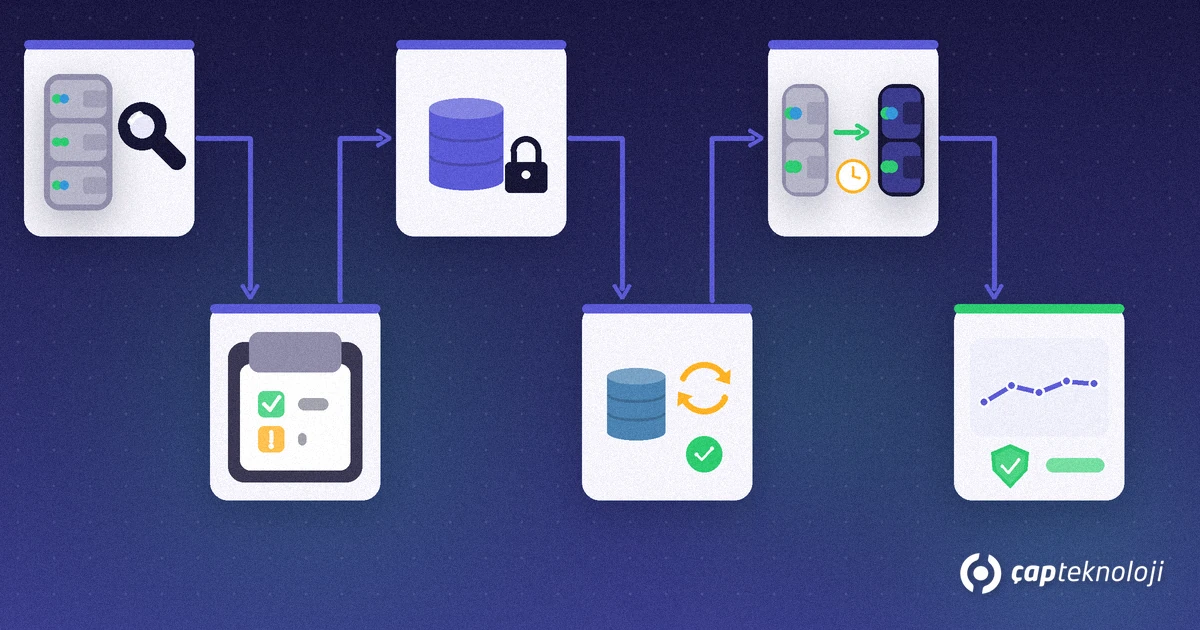
A step-by-step SQL Server upgrade plan
1. Build the inventory
List each instance with its version, edition (Standard, Express and so on) and update level, and each database with its size and compatibility level (SELECT name, compatibility_level FROM sys.databases;). Do not forget the objects stored outside the user databases: logins live in the master database and SQL Server Agent jobs in msdb, and both have to be re-created on a new server. Linked servers, SSIS packages, Reporting Services and every application that connects to SQL Server belong on the list as well. If you lack an up-to-date picture of your environment, an IT infrastructure audit first makes the rest much easier.
2. Check compatibility
Ask the vendors of your ERP and other applications to confirm in writing that they support the target SQL Server version. Then use the SQL Server migration component in SSMS to scan for issues that could block the upgrade or require script changes, review the features that were removed in the new version, and confirm the hardware, operating system and edition requirements of the target server.
3. Take a full backup and verify it
Before you start, take full backups of all user and system databases. Having a backup is not enough; you need to know you can actually restore from it. Our article on SQL Server backups explains how to test a restore.
4. Rehearse the restore in a test environment
Restore the backup on a test server running the new version and ask finance, sales and warehouse staff to run their daily tasks there. Measure how long the restore takes; that figure sets the downtime window for the real cutover. Keep in mind that an upgrade is one-way: a database opened on the new version cannot be restored to the old one, so your rollback plan has to rely on the old server and the pre-upgrade backup.
5. Cut over in a planned window
Agree the downtime window with the business and stay clear of month-end close and stock counts. On the day, stop the applications, restore the final backup on the new server, re-create logins and Agent jobs, then point the applications’ connection settings or the DNS record to the new server. Do not switch off the old server until users have signed off the new environment; if one of your predefined failure criteria is met, you go back to it. It is the same rollback logic we describe in our cloud migration guide.
6. Monitor after the upgrade and raise the compatibility level gradually
The compatibility level is the database setting that decides which SQL Server version’s query behaviour a database uses. If it is 100 or higher, an upgrade or restore leaves it unchanged, and some query processing improvements only take effect once you raise it. Microsoft’s recommended workflow is to enable Query Store, capture a performance baseline at the current level, then raise the level and look for queries that regressed. The Query Tuning Assistant in SSMS guides you through these steps. When the upgrade is complete, take a fresh full backup of every database and run the checks from our article on SQL database performance.
Common mistakes
- Waiting for the end-of-support date: testing, licensing and downtime planning take time, and a last-week upgrade skips them.
- Moving only the databases: if logins, Agent jobs, linked servers and Reporting Services encryption keys are forgotten, the application starts but scheduled jobs and reports fail.
- Upgrading production without a test: an incompatible query or an outdated component then shows up for the first time in the live system.
- Jumping to the highest compatibility level on day one: without a baseline it is hard to tell why a query slowed down.
- Leaving licensing to the last minute: clarify licence needs for the new version and edition at the start of the project.
SQL Server upgrade checklist
- Are all instances, versions, databases, logins and Agent jobs listed?
- Have your software vendors confirmed the target version in writing?
- Has the method been chosen (in-place upgrade or new installation)?
- Has a full backup been taken and test-restored on the new version?
- Are the downtime window, failure criteria and rollback steps written down?
- Are the post-upgrade backup, Query Store monitoring and compatibility level plan ready?
Done in the right order, a SQL Server upgrade is a controlled project with a known downtime window and a clear way back. At ÇAP Teknoloji we plan SQL Server upgrades with you, from inventory and compatibility analysis to the test migration, the cutover plan and performance tracking afterwards. Take a look at our SQL consulting service or get in touch to review your current server together.
Frequently Asked Questions
SQL Server 2016 support has ended. Will my database stop working?
No, the database keeps running. But since 14 July 2026 Microsoft no longer releases regular security updates for SQL Server 2016; patches are only available through the paid Extended Security Updates (ESU) program. New vulnerabilities stay open, so plan the upgrade.
Which SQL Server version should we upgrade to?
Choose the newest version that your ERP and other software vendors officially support. According to Microsoft’s lifecycle pages, extended support for SQL Server 2022 runs until 11 January 2033 and for SQL Server 2025 until 6 January 2036.
How much downtime does a SQL Server upgrade need?
It depends on database size, storage speed and the method you choose. The realistic way to find out is to restore your backup on a test server running the new version and time it. A new installation usually keeps downtime shorter than an in-place upgrade.
Can we go back to the old version after upgrading?
You cannot restore an upgraded database to the older version; an upgrade is one-way. Keep the old server and the pre-upgrade backup available until users have signed off the new environment.