



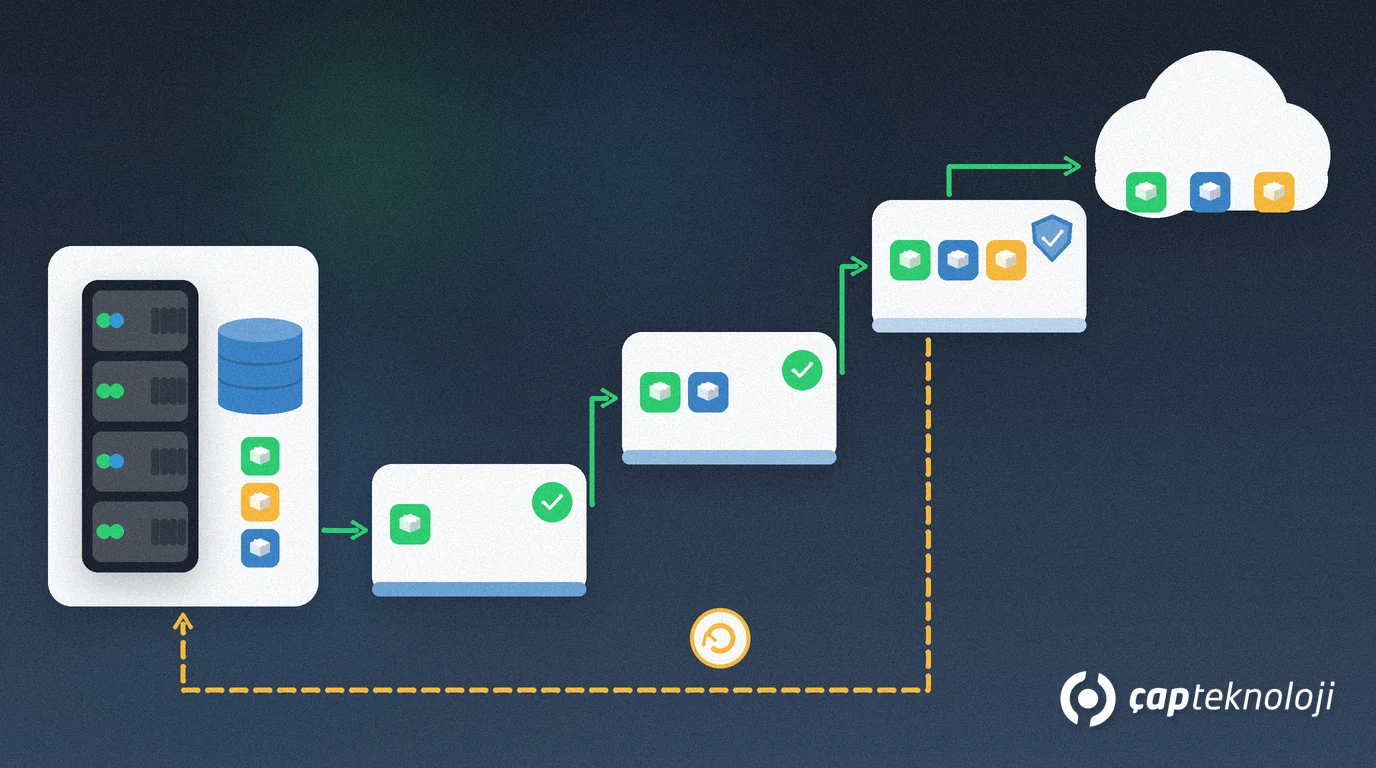
In short: Cloud migration is the planned move of applications, data and services from your own servers to cloud infrastructure, in a deliberate order. For SMEs, a successful cloud migration means mapping the inventory and dependencies first, moving workloads in waves from the least to the most critical, and writing down the downtime window and rollback plan for every workload before anything moves.
In many businesses the cloud question comes up because a hardware refresh is due, the server room had an outage or staff need reliable remote access. The decision is made quickly, but the move itself is often planned on the assumption that “we will move everything over one weekend”. The result is familiar: an ERP that will not start on Monday morning because of a forgotten dependency, a data transfer that takes far longer than expected, and late-night fixes because nobody defined a way back.
This guide treats cloud migration as a managed project rather than a server move and walks through the preparation, sequencing, downtime and rollback decisions step by step.
What cloud migration is, and what it is not
Cloud migration means moving workloads such as a file server, email, ERP, databases or custom software from an on-premises environment to a cloud provider. Not every workload needs the same approach. The most common options are:
- Rehost (“lift and shift”): move the virtual machine to the cloud unchanged. It is the fastest route but postpones cost and performance optimisation.
- Replatform: keep the application largely as it is but move a component, such as the database, to a managed cloud service.
- Refactor: change the application so it uses cloud-native services. It takes more effort and pays off in flexibility over time.
- Replace or retire: some systems are never moved; they are replaced by a SaaS product or switched off if nobody uses them any more.
Cloud migration is not an automatic cost saving. Servers moved without right-sizing can be just as over-provisioned, and more expensive, in the cloud. That is why the decision should be made workload by workload. If you are weighing where your ERP should run, our cloud ERP vs. on-premise ERP comparison is a good place to start.
Before the move: inventory, goals and team
1. Build the inventory
List every server, application, database and scheduled task, together with its owner and how critical it is to the business. Note licensing terms as well; some software is licensed differently in the cloud. If you do not have an up-to-date picture of your environment, an IT infrastructure audit first will remove many surprises later.
2. Write down a goal for each workload
“Move to the cloud” is not a goal in itself. Make the expectation concrete for each workload: secure remote access, avoiding a hardware refresh, simpler backup and disaster recovery, or the ability to scale for seasonal peaks. Once the goal is clear, the migration approach and the success criteria follow.
3. Assess your team’s skills
Who will run the cloud environment? If nobody on the team has experience with identity management, networking, backup and cost control in the cloud, close the gap with training or outside help. Microsoft’s Cloud Adoption Framework guide to planning your migration also recommends assessing team skills before you start and bringing in external expertise where experience is missing.
Your cloud migration plan: dependencies, waves and rollback
4. Map the dependencies
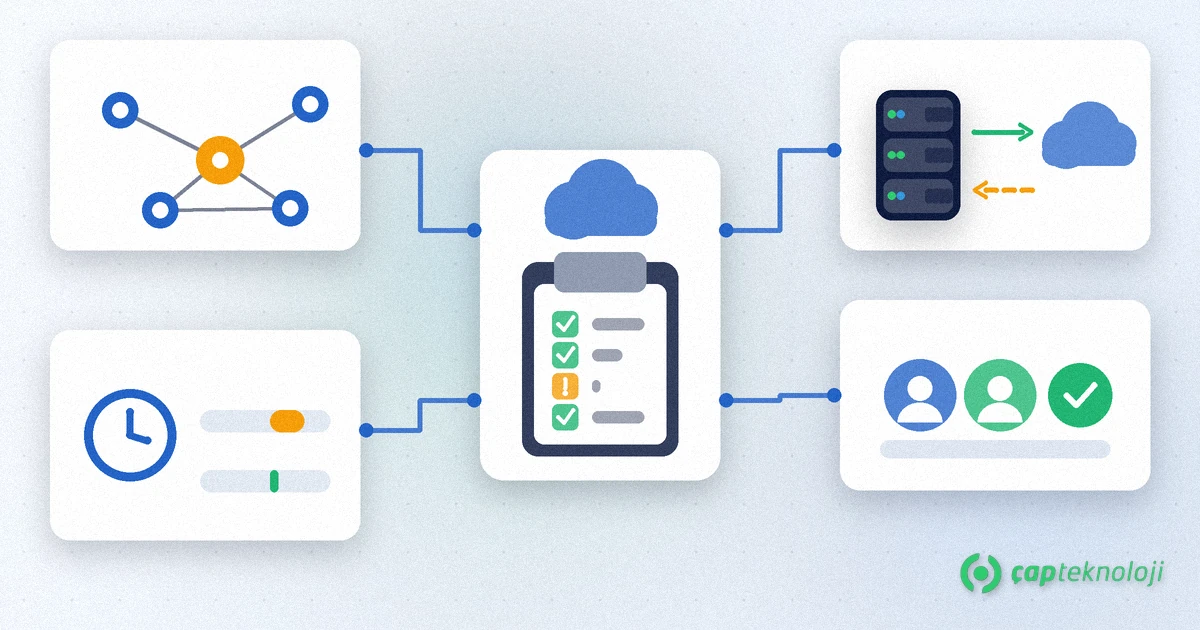
Applications depend on each other: the ERP relies on a database, the reporting tool on the ERP, the warehouse label printer on a local server. Move components that talk to each other directly and need low latency in the same group. If you are unsure how critical a dependency is, keep the components together; you can always split a group later, but a system that was split by mistake stops working on migration day.
5. Split the workloads into waves
Put less critical, self-contained workloads into the first wave: test environments, internal tools, archive files. Once the team has proven the process on those, schedule critical systems for later waves. Migrating test environments before production is the safest way to validate configuration and performance without affecting users.
6. Choose the downtime window
Agree the acceptable downtime for each workload with the business owner and write it down. For systems that can tolerate a planned outage, a migration with downtime is simpler and faster. Customer-facing or continuously used systems need a near-zero-downtime approach in which data is replicated in advance and only a short cutover is required. Keep month-end close, promotion periods and stock counts out of the migration calendar.
7. Write the rollback plan in advance
Before you start, define what counts as a failed migration: an application that will not start, unacceptable response times, missing data or a security finding. Document step by step how you return to the old environment and who makes that call, and rehearse it in a test environment. Do not switch off the on-premises servers until the migration has been verified and users have signed off.
Migration day and after
- Take a final backup and test the restore: what matters is not that a backup exists but that you can actually recover from it. Our disaster recovery plan guide explains how to set RPO and RTO targets.
- Run acceptance tests with real users: do not call the migration complete until finance, sales and warehouse staff have tried their daily tasks in the new environment.
- Tighten access security: make multi-factor authentication (MFA) mandatory for the cloud management console and all remote access.
- Watch costs from day one: switch off unused resources, right-size servers to actual usage and set budget alerts.
- Update the documentation: if new IP addresses, access paths and owners are not written down, the first incident will cost you time.
Common mistakes
- Moving everything at once: one big-bang migration lets a single error stop the whole company.
- Assuming dependencies: an undocumented integration or scheduled task quietly stops working after the move.
- Underestimating transfer time: test your connection capacity for large databases and file archives in advance.
- No rollback plan: “we will deal with it if something goes wrong” leaves nobody empowered to decide when it does.
- Declaring victory too early: if sizing, cost and security settings are not reviewed in the weeks after the move, much of the cloud’s benefit is lost.
Cloud migration checklist
- Is the inventory of servers, applications, databases and tasks ready, with owners?
- Is a goal and a migration approach written down for each workload?
- Have dependency groups and migration waves been defined?
- Have downtime windows been agreed with the business, avoiding critical dates?
- Are failure criteria and rollback steps documented and tested?
- Is it clear who owns security, cost and documentation after the move?
Done in the right order and with a clear way back, cloud migration is a controlled change that gives the business more flexibility. At ÇAP Teknoloji we plan cloud migrations with SMEs from inventory and dependency analysis to wave planning, rollback scenarios and post-migration cost tracking. Explore our consulting services or get in touch to review your current environment together.
Frequently Asked Questions
How long does a cloud migration take?
It depends on the number of workloads, their dependencies, the data volume and your connection capacity. A single file server can move quickly, while a migration that includes the ERP and its integrations is usually spread over several waves. Build the inventory and dependency map first to get a realistic schedule.
Should we move all systems to the cloud at once?
Usually not. Starting with less critical workloads and moving critical systems in later waves, once the process is proven, lowers the risk. Components that depend directly on each other should still move together in the same wave.
Does cloud migration reduce costs?
Not automatically. Hardware refresh and server room costs may fall, but resources that are oversized or left running keep costing money in the cloud. Monitor usage after the move and right-size accordingly.
What happens if the migration fails?
You follow the rollback plan written before the migration: when a defined failure criterion is met, the responsible person decides to return to the old environment. That is why on-premises servers should stay available until the migration is verified and users have signed off.