



In short: Logo database slow? First find out whether the slowness affects one screen or every user. Then check the SQL Server side in order: edition limits, memory setting, disk waits, blocking, statistics and indexes. Measure before and after every single change.
In Logo Edge T-Series (formerly Logo Tiger 3) and Logo Edge N-Series (formerly Logo Netsis 3) installations, company data lives in a Microsoft SQL Server database. When invoices save slowly or screens freeze at month end, the first thought is “the server is too small”. In our projects as a Logo partner, we usually find configuration, maintenance and blocking problems first. Here is a checklist you or your IT team can follow step by step.
Contents
- Is the slowness really coming from the database?
- Measure before you change anything
- Logo database slow: the SQL Server checklist
- From symptom to cause: a quick diagnosis table
- 5 well-meant fixes that make it worse
- When should you get help?
- Summary
Is the slowness really coming from the database?
SQL Server is Microsoft’s relational database management system. Logo products write records to its tables and read reports from them.
The network, a terminal server, a client PC or a single report can show the same symptom. First answer three questions:
- Where? Is one screen or report slow, or every module?
- Who? Is one user affected, or everyone? Do users in a remote branch complain more?
- When? At certain times (backups, bulk imports, month end), or all day?
One user on one PC: check the client and network. Everyone, every module, same times: most likely SQL Server. One slow report: check its filters and date range.
Measure before you change anything
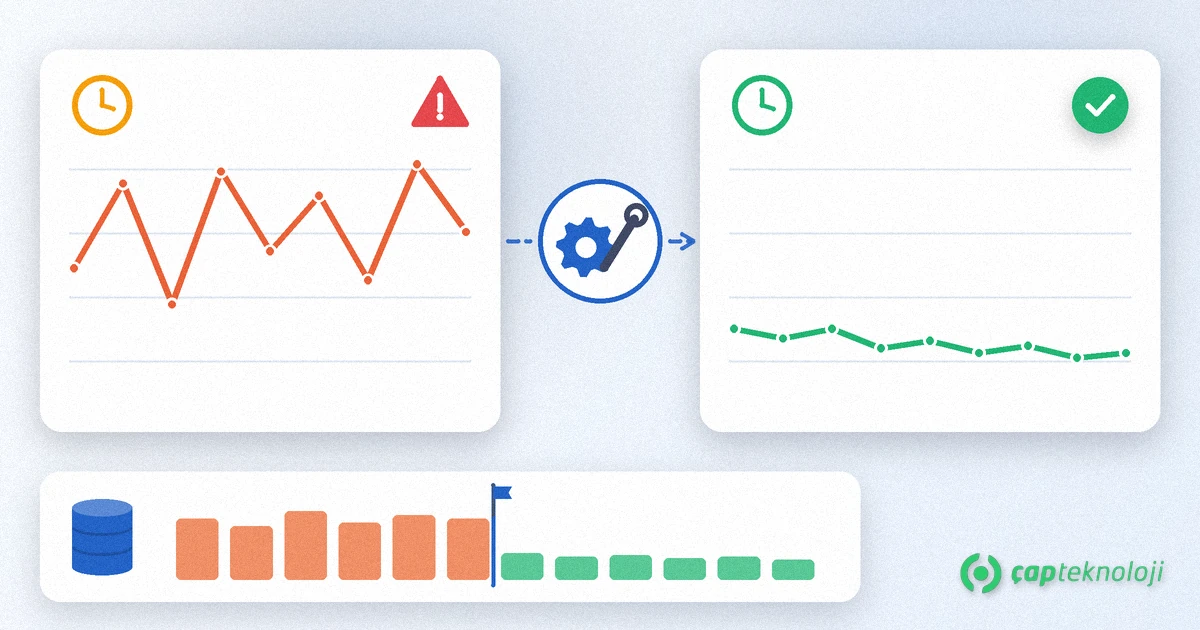
The most common mistake we see is changing settings without measuring. After three changes at once, nobody knows which one helped. Follow this order:
- Write down the slow operation: which screen, which report, what time and how long it took.
- Record SQL Server’s wait statistics and the queries that use the most resources.
- Make one change.
- Measure the same operation under the same conditions and compare.
Query Store helps here: it keeps query runtimes and plans inside the database for before and after comparisons. According to Microsoft’s Query Store documentation, it is enabled by default for new databases created on SQL Server 2022. On older versions you have to turn it on yourself.
Logo database slow: the SQL Server checklist
Work through these eight steps in order. The first ones are quick.
1. SQL Server edition and its limits
Check the SQL Server edition first. According to Microsoft’s SQL Server 2022 editions comparison, an Express database can be at most 10 GB, the buffer pool uses at most 1,410 MB of memory, and compute is limited to the lesser of 1 socket or 4 cores. As data grows, these limits can cause slowness directly.
2. Memory setting (max server memory)
With default settings, SQL Server can use almost all memory on the server. The default value of “max server memory” is 2,147,483,647 MB. Logo services, terminal sessions or other software on the same server then compete for memory. Microsoft’s server memory configuration guide recommends giving SQL Server about 75% of the memory that other processes do not use.
3. Disk and wait types
SQL Server records why a task waits. The leading wait types in sys.dm_os_wait_stats show the direction:
- PAGEIOLATCH_SH and PAGEIOLATCH_EX: waiting for data pages to be read from disk. Long waits point to the disk subsystem, or to too little memory, which forces more disk reads.
- WRITELOG: waiting for the transaction log to be written to disk. Check the latency of the disk that holds the log file.
- Waits starting with LCK_M_: waiting for a lock. The problem is not the disk but concurrent work.
In our projects we often find data files, log file and tempdb on the same slow disk.
4. Blocking
When one user runs a long transaction, others who need the same records wait, and they report that “Logo froze”. Look at the “Blocked By” column in Activity Monitor in SQL Server Management Studio, or at blocking_session_id in sys.dm_exec_requests. A value other than zero means the session is waiting for another session. Find the session at the head of the chain: usually a long report, a bulk import or an open transaction. Our article on preventing SQL locking goes into detail.
5. Statistics
SQL Server chooses a query plan based on statistics that summarise how data is distributed in a table. After a bulk import or a busy month end, stale statistics can lead to poor plans. According to Microsoft’s index maintenance documentation, the improvement from an index rebuild often comes from the statistics update that comes with it. Updating statistics is far cheaper, so plan it first.
6. Indexes
Measure index fragmentation with sys.dm_db_index_physical_stats. Microsoft advises against deciding on maintenance from a fixed fragmentation threshold alone and recommends measuring the effect instead. Focus on measured indexes instead of rebuilding everything every night. Do not add new indexes to Logo tables on your own; decide this with your partner and test it first. We compare maintenance methods in our article on SQL Server index maintenance.
7. tempdb
tempdb is SQL Server’s temporary workspace for sorting, grouping and large reports. According to Microsoft’s tempdb documentation, start with as many data files as logical processors when there are eight or fewer, and with eight files when there are more. If contention continues, add files in multiples of four. All files should have the same initial size and growth settings.
8. Data and log files
Check the autogrowth settings of the files. A log file that grows in very small steps causes frequent growth waits at busy times. Make sure AUTO_SHRINK is off; according to Microsoft, frequent shrinking and growing leads to physical fragmentation. If the recovery model is FULL, also confirm that regular log backups run. Otherwise the log file keeps growing.
Quick checklist:
- Slow operation, time and duration noted?
- SQL Server edition and limits known?
- max server memory set with other workloads in mind?
- Have you recorded the top wait types?
- Have you found the session at the head of the blocking chain?
- Is statistics maintenance scheduled?
- Is index maintenance based on measurement?
- Are the tempdb files equal in size and on a fast disk?
- Is AUTO_SHRINK off and do log backups run regularly?
From symptom to cause: a quick diagnosis table
| Symptom | Likely cause | First check |
|---|---|---|
| Every screen is slow all day | Memory, disk or edition limits | max server memory, wait types, SQL Server edition |
| Everyone freezes at certain times | Blocking, a backup or a maintenance job | blocking_session_id, schedules of planned jobs |
| One report is very slow | Stale statistics, wide date range | Report filters, statistics freshness |
| Slow after a bulk import | Statistics went stale | Statistics update, before and after measurement |
| Only the remote branch is slow | Network or terminal server | Network latency, session resources |
| The log disk keeps filling up | No log backups, small growth steps | Recovery model, log backup plan |
5 well-meant fixes that make it worse
- Shrinking the database regularly: the file grows again and fragmentation increases.
- Rebuilding every index nightly: slow, grows the log, effect never measured.
- Adding indexes to Logo tables without testing, or changing data directly with SQL: this can cause problems with product updates and business rules.
- Only adding hardware: if blocking or stale statistics cause it, a new server is slow too.
- Changing several settings at once: you will not know what worked.
When should you get help?
Expert help saves time when the blocking chain repeats every day, when wait types do not clearly separate disk from memory, or when an edition change or server move is on the table. For Logo parameters, users and module structure, work with our ERP consulting team. For SQL Server settings, maintenance plans and monitoring, our SQL consulting service steps in. If you are still choosing a product, our comparison Logo Edge T-Series vs N-Series helps you decide.
Summary
When Logo slows down, separate where, who and when. If the database is the cause, go from edition limits to memory, disk waits, blocking, statistics, indexes, tempdb and files. Measure, change one thing, measure again. At ÇAP Teknoloji we are happy to review the SQL Server side of your Logo installation with you; write to us via our contact page.
Frequently Asked Questions
What should I check first when Logo is slow?
First find out whether the slowness affects one screen, every user or certain times of day. If everyone is affected at once, look at blocking and wait types in SQL Server. If only one PC is affected, the client and network are the first suspects.
Can SQL Server Express make Logo slow?
It can. According to Microsoft, a SQL Server 2022 Express database can be at most 10 GB and its buffer pool uses at most 1,410 MB of memory. As data and users grow, these limits can cause slowness. Check which edition your installation runs on.
Should I rebuild indexes every night?
Usually not. Microsoft recommends deciding on maintenance by measuring its effect rather than by a fixed fragmentation threshold. The gain often comes from the statistics update, and updating statistics uses far fewer resources.
Will a more powerful server fix the problem?
It helps if memory or disk really is the bottleneck. If blocking, stale statistics or a wrong memory setting is the cause, the new server has the same problem. Measure wait types before you decide.
Can I add indexes to Logo tables myself?
We do not recommend it. Changes to Logo tables can affect product updates and business rules. If an index seems necessary, decide together with your partner and try it in a test environment first.