


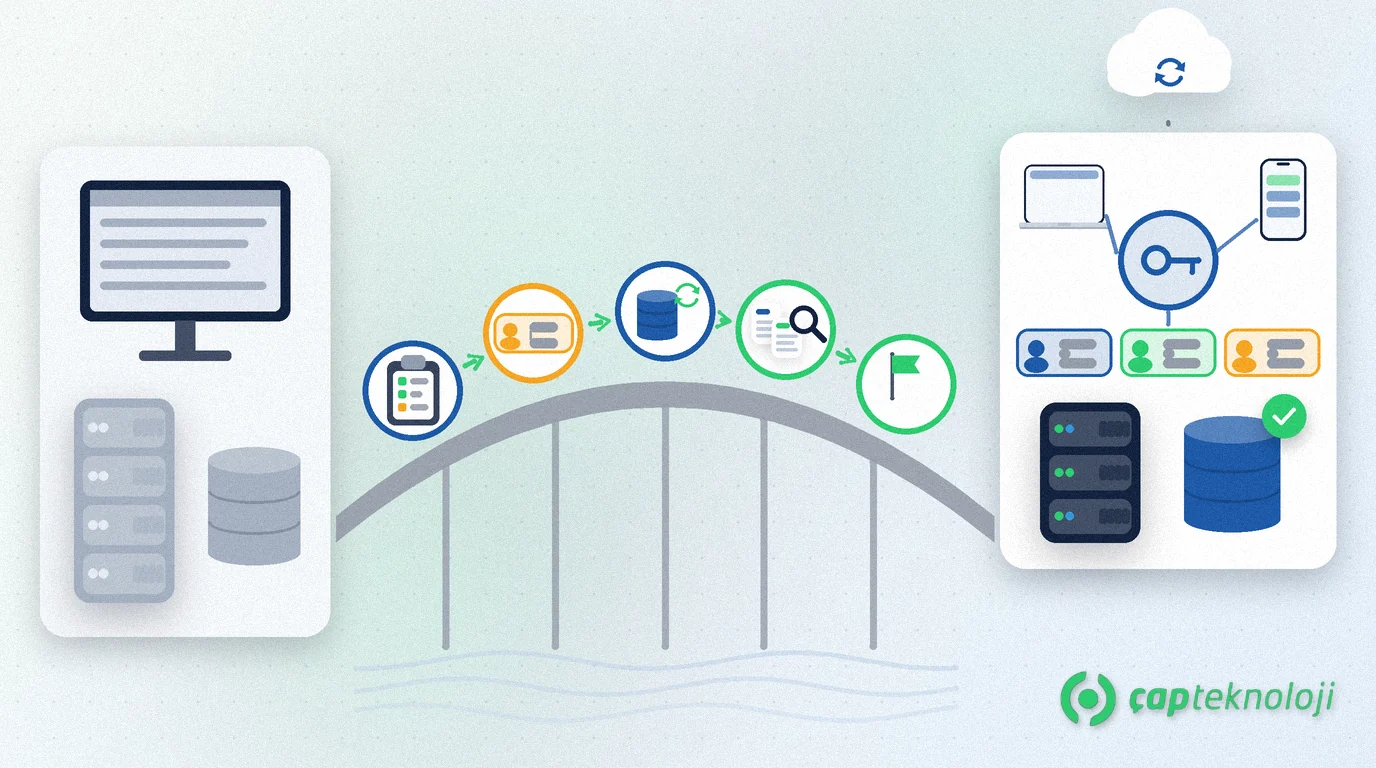
In short: A Tiger 3 to Logo Edge T-Series migration keeps your data on your own server but moves installation, licensing and user management to a new model. Start with an inventory of your current setup, then work through backup, a test environment, data validation and a pilot phase in that order. Plan the go-live for a quiet period, ideally the start of a period.
If you have decided to move to Logo Edge T-Series (formerly Logo Tiger 3), the real questions are “when” and “how”. If you are still choosing between the two product lines, read Logo Edge T-Series vs N-Series first. In this article we turn what we see in our projects as a Logo partner into a plan you can follow.
Contents
- What changes when you move to Logo Edge T-Series?
- Take stock of your current setup first
- Tiger 3 to Logo Edge T-Series migration: the step-by-step plan
- After the data transfer: what to check and who signs off
- 5 common migration mistakes
- Migration checklist
- Summary
What changes when you move to Logo Edge T-Series?
Logo Edge T-Series is a hybrid ERP solution that brings finance, sales, inventory and procurement onto one platform, runs on your own server (on-premise) and is extended by cloud services.
Screens and workflows will feel familiar. Installation, licensing and users, however, work differently in ways that shape your plan. The points below come from Logo’s product page and the Logo Edge T-Series Standard price list document (in Turkish).
| Topic | How Logo Edge T-Series handles it | Impact on your migration plan |
|---|---|---|
| Installation and access | Installation and access to the products run through Logo Base; an Agent service talks to the cloud side. | Prepare a server where the Agent service can run and outbound connections are allowed. |
| Licensing | No product key is needed; a one-time licence synchronisation happens at first use. | Schedule the first installation day with internet access and an authorised person present. |
| Users | Users are named users identified by a Logo ID. | List in advance which email address each employee will sign in with. |
| Integrations | Objects and REST applications are licensed by concurrent user count. | Count your integrations as a separate item and test them. |
| Usage model | The subscription is valid for one year; if it is not renewed, access ends. | Put the renewal date and an owner in your calendar. |
| Data | The database stays on your own server; web and mobile access are available. | Server, SQL Server and backups remain your responsibility. |
Pricing depends on the number of users and modules; ask your partner for a quote.
Take stock of your current setup first
Most migration surprises come from a report nobody remembered or an integration written years ago. So the first job is to write down what you use today:
- Licensed modules and active users (who uses which module, and how often)
- Companies, periods and branches
- Custom reports, form designs and customisations
- Integrations: e-commerce, field sales, banks, your e-invoicing provider and Excel imports
- Server, operating system and SQL Server version
- Backup method and the last successful restore test
Removing unused modules and inactive users at this stage clarifies your new licence plan and reduces what you have to test.
Tiger 3 to Logo Edge T-Series migration: the step-by-step plan
The nine steps below are the skeleton of a typical migration in a mid-sized company. Set the timing according to your own data volume and number of customisations.
- Settle the package and the user list. Use the inventory to define modules and named users, then ask your partner for a quote.
- Prepare the server and SQL Server. Ask your partner for the current “System Requirements” document. If your SQL Server version is old, plan the upgrade as a separate task; our SQL Server upgrade guide covers this step.
- Take a full backup and test the restore. Having a backup is not enough; restore it on a separate server and confirm it opens.
- Build a test environment. Install Logo Base and the Agent service on a test server and try licence synchronisation and user sign-in there.
- Transfer and validate the data. Agree the transfer method with your partner and check the results against the table in the next section.
- Test customisations and integrations. Run custom reports, Objects or REST connections and e-document sending one by one in the test environment.
- Run a pilot and train users. Let a few key users process real transactions in the test environment. Plan training with your certified partner.
- Go live. Choose a quiet moment such as the start of a period. Keep the old system available read-only for a while.
- Plan support for the first period close. Problems show up at the first month-end and period close; reserve support for those days.
For legal obligations, choose the go-live date together with your accountant and verify the current e-invoicing rules with the Turkish Revenue Administration (GİB).
After the data transfer: what to check and who signs off
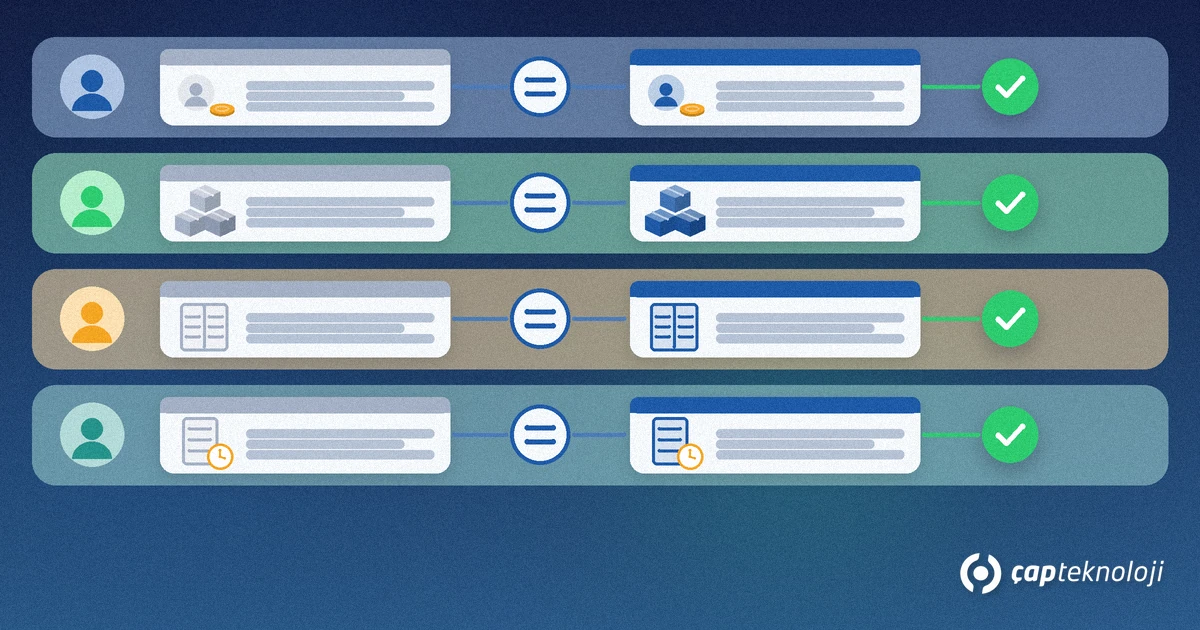
A finished transfer does not prove the data is correct. Give each area an owner and compare the old and the new system for the same cut-off date.
| Area | What to compare | Who signs off |
|---|---|---|
| Customer and supplier accounts | Balances and open items | Accounting and finance |
| Inventory | Quantities and costs per warehouse | Warehouse and cost owner |
| General ledger | Trial balance totals and account balances | Accounting and your accountant |
| Open orders | Sales and purchase orders, delivery notes | Sales and purchasing |
| e-Documents | Series and number tracking, a test send | Accounting and IT |
| Permissions | User roles and restrictions | IT and department heads |
Collect every difference in one list and close the cause of each one before go-live.
5 common migration mistakes
- Asking for a quote without an inventory: A forgotten integration surfaces after go-live.
- Skipping the restore test: Finding out during an incident that the backup does not open is the most expensive scenario.
- Going live at month-end: The closing workload and the learning curve hit at the same time.
- Leaving the user list to the last day: A user without a Logo ID cannot sign in on the first morning.
- Not testing performance: Reports you never ran with real data volumes may be slow in production. Our Logo database slow checklist helps in that case.
Migration checklist
- Is the inventory of modules, users, companies and integrations ready?
- Do you know each user’s email address for the Logo ID?
- Have you received the System Requirements document and prepared the server and SQL Server accordingly?
- Have you taken a full backup and tested the restore?
- Did you try licence synchronisation and sign-in in the test environment?
- Have the owners signed off accounts, inventory, trial balance and open orders?
- Have integrations and e-document sending been tested?
- Did you set the go-live date with your accountant?
- Is the subscription renewal date in the calendar with an owner?
Summary
In a Tiger 3 to Logo Edge T-Series migration your data stays on your own server, while installation, licensing and user management change. Start with an inventory, test your backup, try everything in a test environment, have the owners sign off the data and go live at the start of a quiet period. Confirm the support period of your current product and the migration terms with your partner in writing. At ÇAP Teknoloji we can run your migration plan with you as part of our ERP consulting and prepare the server and database side through our SQL consulting; reach us via our contact page.
Frequently Asked Questions
Does our data move to the cloud with Logo Edge T-Series?
No. According to Logo’s product page, Logo Edge T-Series runs on your own server (on-premise) and has a hybrid structure extended by cloud services. The database stays on your server, and server and backup preparation remain your responsibility.
Do we need a licence file or product key?
According to Logo, no product key is needed. A one-time licence synchronisation happens at first use, and the licence status is tracked through the Agent service. Make sure the server has internet access on the first installation day.
How are users defined?
According to Logo’s price list document, users are named users identified by a Logo ID. If the same user signs in on another computer, the first session ends. Before the migration, list which email address each employee will use to sign in.
When is a good time to migrate?
A quiet start of a period, away from month-end and period close, is usually a good choice. Choose the date with your accountant because of legal obligations, and confirm the support period of your current product with your partner in writing.
Will our Objects integrations keep working?
Do not assume it without testing. Run each integration in the test environment and check the results. According to Logo’s price list, Objects and REST applications are licensed by concurrent user count, so have this item added to your quote separately.