


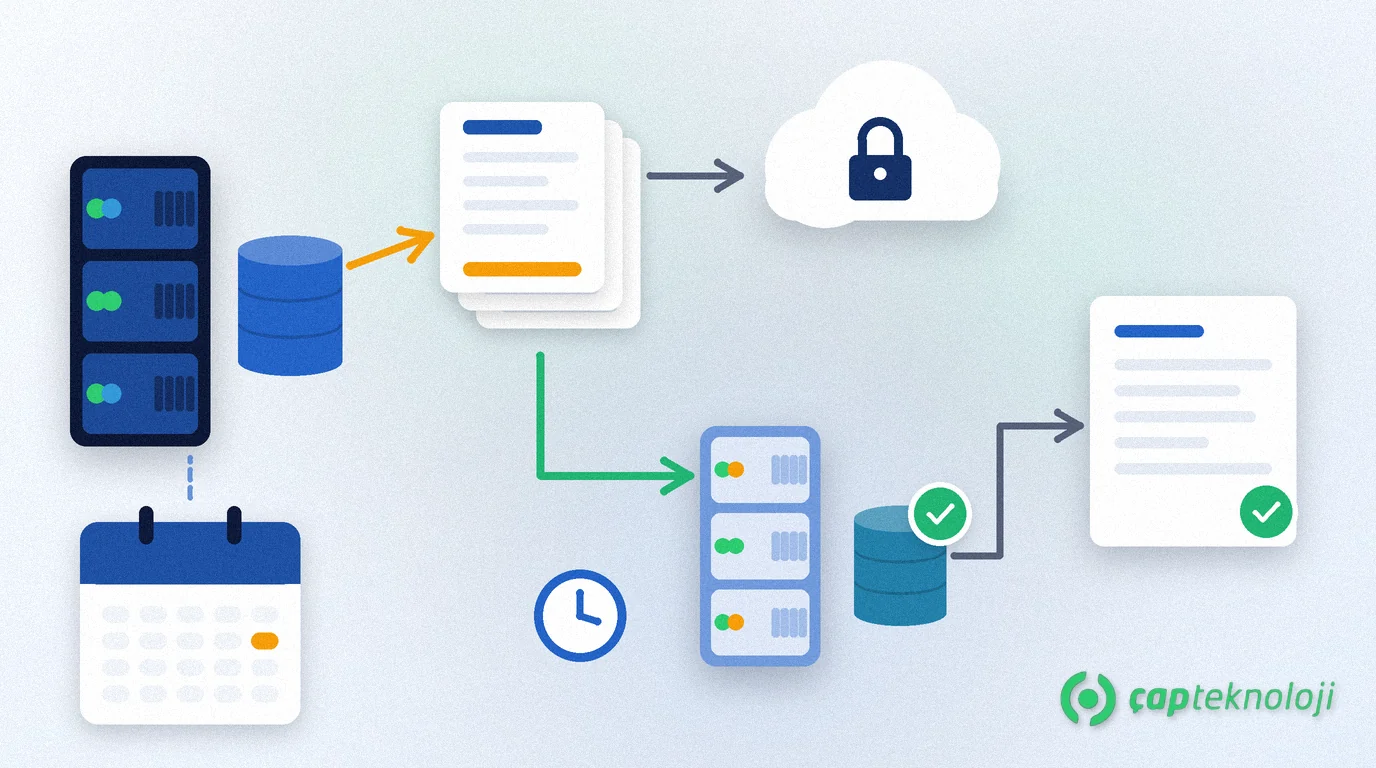
In short: A Logo backup means regularly backing up the SQL Server database in which Logo keeps its data, and proving on a separate server that the backup file can actually be restored. Having a backup file is not enough. A backup that has never been restored may fail on the very day you need it.
As a Logo partner we often hear “we have a backup”, yet nobody can say when the last one finished, where it is stored or how long a restore would take. This guide is for IT leads, finance managers and business owners who are not database administrators. Logo is a Turkish ERP vendor, and its products run on Microsoft SQL Server. For the general logic of backups and the RPO/RTO concepts, see our article on SQL Server backups. Here we focus on concrete steps for a business running Logo.
Contents
- What does a Logo backup protect?
- Is your backup really running? A five-minute check
- Logo backup plan: when, where and how many copies?
- Restore test step by step
- A manual backup before big changes
- Common mistakes
- Logo backup checklist
- Summary
What does a Logo backup protect?
Logo ERP products such as Logo Edge T-Series (formerly Logo Tiger 3) and Logo Edge N-Series (formerly Logo Netsis 3) store their data in a Microsoft SQL Server database. Customer and supplier accounts, invoices, stock movements and journal entries all live there. Copying the program folder therefore does not back up your data. What needs backing up is the database in SQL Server.
Your installation may have more than one database. There may also be files outside the database, such as custom report designs or integration settings. Write down together with your partner which of them are covered by the backup.
SQL Server has three basic backup types:
| Backup type | What it contains | When it helps |
|---|---|---|
| Full backup | The whole database as of the moment the backup finished | The starting point of every restore |
| Differential backup | Data changed since the last full backup | Adds restore points between full backups |
| Transaction log backup | Log records not yet backed up | Lets you return to a point during the day; needs the full recovery model and an earlier full backup |
Is your backup really running? A five-minute check
Ask your IT lead or partner these four questions. If the answers are vague, so is your backup.
- When? On which days and at what time does the backup run? When did the last successful backup finish?
- Where? In which folder and on which disk are the backup files? Is there a copy outside the server?
- How long? How many days are old backups kept?
- Who? Who is notified when a backup fails?
You learn the date of the last backup from a record, not from a guess. SQL Server keeps its backup history in the msdb database. Your IT lead can list recent backups with this query: SELECT database_name, type, backup_finish_date FROM msdb.dbo.backupset ORDER BY backup_finish_date DESC; In the type column, D means a full backup, I a differential backup and L a log backup.
If your Logo installation runs on the free SQL Server Express edition, pay extra attention. According to Microsoft’s documentation, Express does not include SQL Server Agent, so scheduled backups usually run as a script started by Windows Task Scheduler. Microsoft notes that a task reported as successful is no proof that the backup succeeded. Check regularly that new files appear in the folder and new rows appear in the backup history.
Logo backup plan: when, where and how many copies?
The plan starts with the loss your business can tolerate. Ask yourself: could you re-enter a full day of invoices, delivery notes and journal entries? If not, one full backup at night is not enough. Plan differential or transaction log backups during the day as well.
- A separate location: Microsoft’s backup and restore guidance recommends keeping backups in a physical location or device separate from the database files. A backup on the same disk is lost together with the data when the disk fails.
- A copy off the network: Ransomware can also encrypt backups it can reach over the network. Keeping at least one copy somewhere that is not permanently reachable reduces that risk. We cover failure scenarios in our disaster recovery plan guide.
- Encryption and access: A Logo backup contains personal data about customers, employees and bank accounts. Microsoft recommends encrypting backups and not granting backup accounts more privileges than they need.
- Retention: Decide how many days of backups you keep. Store the backup taken before a period-end close separately and for longer.
- A written record: Keep the backup location, the person responsible and the restore time measured in the last test in one document.
If you need help setting up or reviewing the backup plan on the SQL Server side, see our SQL consulting page.
Restore test step by step
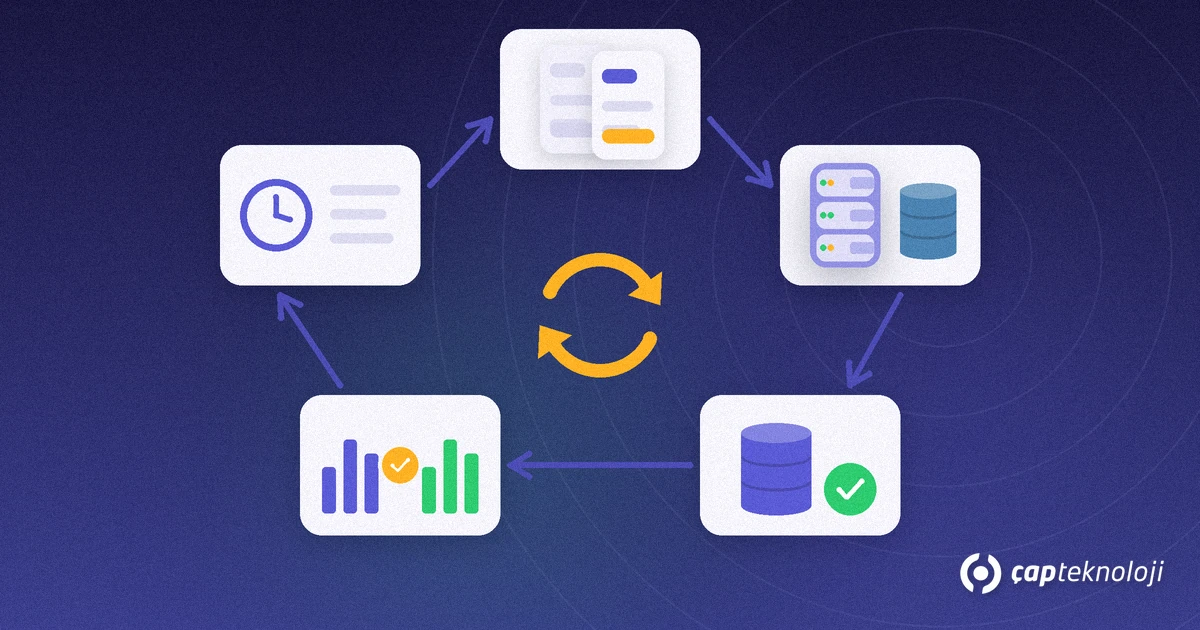
Microsoft’s guidance is clear: you don’t have a restore strategy until you test your backups. You test by restoring a copy of the backup onto a separate system. For a business running Logo, the steps are:
- Prepare a test location. Use a server or SQL Server instance separate from the live system. Never test over the live database.
- Pick the latest backup. Take the newest full backup plus any later differential and log backups. From time to time, test from the off-server copy as well, to see that it opens too.
- Restore under a different name. Check that the restore completes without errors.
- Check consistency. Microsoft recommends running
DBCC CHECKDBafter the restore. It shows whether the database is damaged. Your IT lead or partner runs it. - Compare business data. Connecting the Logo application to the test database needs installation and licence settings; plan this step with your partner. Then compare with the moment the backup was taken: do the number and date of the last invoice, the balance of a few accounts, the stock of a few items and the trial balance totals match?
- Measure and record the time. Note when the restore started and finished. This is the best indicator of how long the system would be down in a real failure. Record the date, backup file, duration, result and who checked it.
- Clean up the test environment. The test database contains real personal data. Delete it when you are done or protect it as strictly as the live system.
In our projects we recommend testing at least every three months and before every major change. Review long backup and restore times together with the checks in our Logo database slow checklist.
A manual backup before big changes
Some operations make changes that are hard to undo. Right before them, take a full backup without waiting for the scheduled one, and check that the file was created:
- A Logo version upgrade or update
- Period transfer and year-end operations
- Bulk price changes, bulk deletions or data imports
- Putting a new integration live
To avoid disturbing the routine backup chain, SQL Server offers a copy-only (COPY_ONLY) backup option. Discuss it with your IT lead.
Common mistakes
- Keeping the backup on the same server: a hardware failure or ransomware takes the backup with it.
- Treating the program folder as a backup: the data is in the SQL Server database, not in the folder.
- Trusting a “successful” message: nobody checks the file and the backup history.
- Doing the first restore on the day of the crisis: nobody knows the steps or the duration, so downtime grows.
- Testing over the live database: current data can be overwritten by an old backup.
- Unencrypted backups anyone can open: personal data may reach unauthorised people.
- Knowledge held by one person: the failure may happen while that person is on leave.
- Restoring a backup file of unknown origin: Microsoft warns that restoring a backup from an untrusted source is a security risk for the whole SQL Server environment.
Logo backup checklist
- Are Logo’s databases and the files outside the database listed in writing?
- Was the date of the last successful backup checked in the msdb history?
- Are full, differential and log backups planned according to the data loss you can accept?
- Is one copy outside the server and one copy off the network?
- Are backups encrypted, with access limited to authorised people?
- When was the last restore test, and are its duration and result recorded?
- Did the test include DBCC CHECKDB and a comparison of business data?
- Does everyone know the rule of a manual backup before big changes?
- Is someone notified when a backup fails?
Summary
A Logo backup answers three questions: is the backup taken regularly, is it stored safely, and can it really be restored? A plan and regular checks answer the first two. Only a regular restore test answers the third. A team that has tested knows what to do on the day of a failure and how long it will take.
At ÇAP Teknoloji we review the backup plan of your Logo installation, run the first restore test with you and document the result. Learn more on our ERP consulting page or get in touch with us.
Frequently Asked Questions
Does copying the Logo program folder count as a backup?
No. Logo ERP products store their data in a Microsoft SQL Server database. Accounts, invoices and stock data are in the database, not in the folder. Back up the database through SQL Server.
How do I know my Logo backup is working?
Check that new files appear in the backup folder and ask your IT lead to look at the backup history in the msdb database. On SQL Server Express, a successful message from Task Scheduler alone is no proof.
How often should we run a restore test?
In our projects we recommend at least every three months and before every major change such as a version upgrade or a period transfer. Record the duration and result of each test.
Can I run the restore test on the live server?
Do not restore over the live database. Test on a separate server or SQL Server instance under a different database name. Plan the step of connecting Logo to the test database with your partner.
Where should Logo backups be stored?
Microsoft recommends keeping backups in a physical location separate from the database files. Keep at least one copy outside the server and one copy somewhere not permanently reachable over the network, encrypted and with restricted access.