


In short: When every Logo user can reach only the screens, companies and transactions they need for their job, both mistakes and misuse become far less likely. The way to get there is to grant permissions by role rather than by person, remove shared logins and review access at regular intervals. A well-built permission model is set up once and then simply kept up to date.
In many SMEs, users are created in a hurry on the day Logo goes live, with the idea that “everyone can see everything for now”. A few years later the picture looks like this: the warehouse lead can delete invoices, an intern can see customer balances and payroll, and three people in accounting work under the same username. When a record is changed or deleted, nobody can tell who did it. This article explains how user permissions work in Logo ERP (the Turkish ERP suite including Logo Tiger, Logo Go and Logo Edge), the most common mistakes, and the steps to a role-based permission model.
Contents
- What are user permissions in Logo?
- The most common permission mistakes
- A role-based permission model in 6 steps
- Data protection, security and risks
- Summary and checklist
- Frequently Asked Questions
What are user permissions in Logo?
Permissions are the set of rules that decide what a user can see and do inside the ERP. In Logo products, users, user groups and access rights are usually managed in the System Manager (Sistem İşletmeni). Screen names vary by product and version, but the logic is the same and works on several layers:
- Company and period: which company records and which fiscal period a user may open.
- Branch, department and warehouse: in businesses with several sites or stock locations, users should see only their own unit.
- Menu and action rights: opening a module is one right; adding, changing, deleting and printing records are separate rights.
- Record-level restrictions: fields such as authorization codes limit certain customer, item or document groups to the people responsible for them.
- Reports and export: whether data visible on screen may also be exported to Excel is a separate decision.
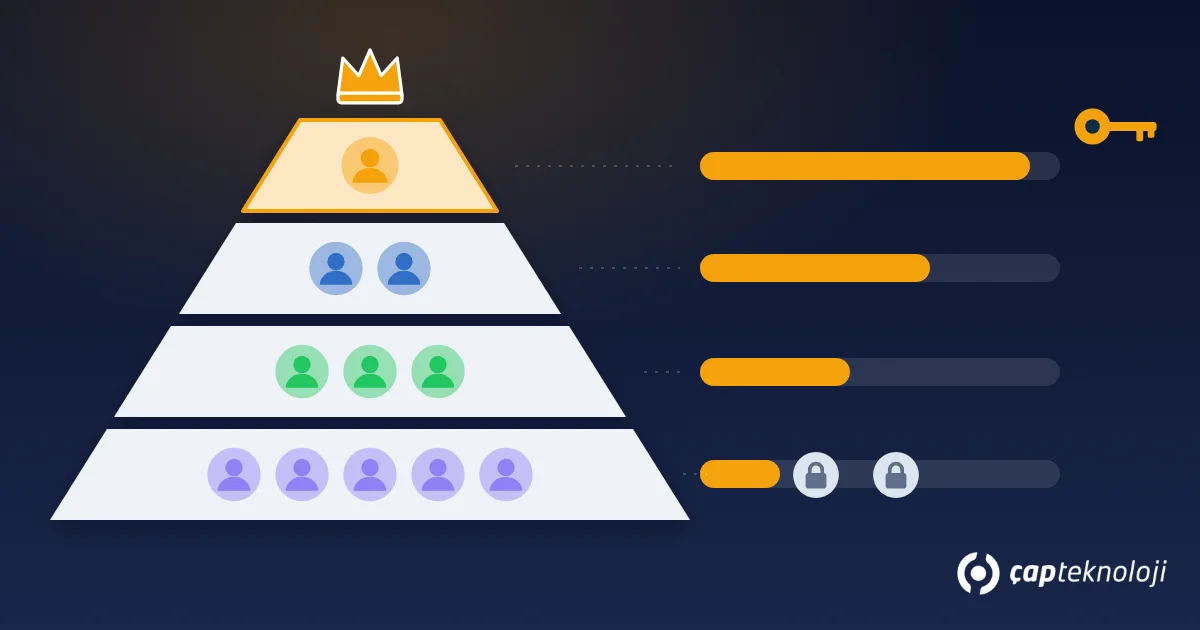
Instead of setting every layer person by person, defining one role (user group) for everyone doing the same job makes administration much easier. A typical SME could start from something like this:
| Role | Needs to see | Usually should not have |
|---|---|---|
| Sales | Customer accounts, orders, invoices for their region, stock levels | Costs, purchase prices, deleting documents, accounting |
| Warehouse | Delivery notes, warehouse slips, stock counts, own warehouse stock | Prices, customer balances, changing invoices |
| Purchasing | Supplier accounts, requests and orders, purchase prices | Payment approval, banking transactions |
| Accounting | Journal entries, customer and bank transactions, closing | System settings, user definitions |
| Human resources | Payroll and employee records | Most commercial modules |
| System administrator | User and role definitions, parameters | Daily transactions (ideally with a separate login) |
The most common permission mistakes in Logo
Most of the problems we see in practice come from habit, not technology:
- Everyone is an administrator: the full-rights account created during installation is shared with the whole team. One wrong click changes a parameter or deletes a document.
- Shared usernames: accounts such as “accounting” or “warehouse” used by several people make the change history meaningless.
- Personal exceptions: every new request adds “just this one screen” for a single user, until nobody knows who can do what.
- Accounts of former staff: the login of someone who left stays active for months, and the password is passed on to a colleague.
- Forgetting the database: however well rights are set inside Logo, if the SQL Server administrator password sits in Excel connections or reporting tools, the restrictions are effectively bypassed.
A role-based permission model in 6 steps
1. Take stock of the current situation
List every Logo user: who uses it, which department they work in, when they last logged in and what rights they hold. Flag accounts that have not been used for a long time, whose owner is unknown or that are shared. The same list also clarifies how you are using your licences.
2. Define roles and a permission matrix
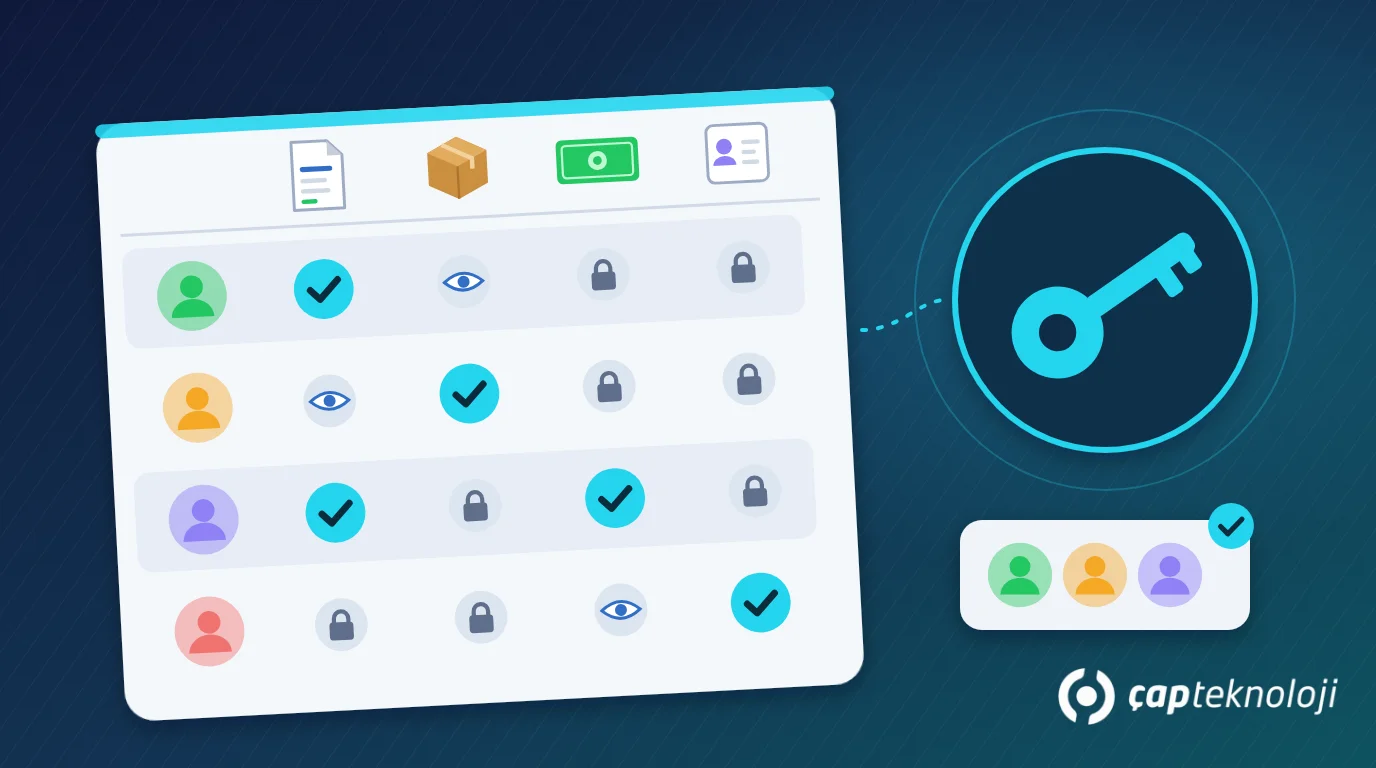
Sit down with each department head and agree which screens the team really uses. Write the result into a simple table: roles in the rows, modules and actions (view, add, change, delete, print, export) in the columns. This matrix becomes the reference for every later decision and is useful in audits too.
3. Remove shared logins and give everyone their own account
Every employee should work under their own username. That makes the change history meaningful, and when someone leaves you only close their account. Do not use the full-rights administrator account for daily work; even the system administrator should post daily documents with a normal user.
4. Apply restrictions on the least-privilege principle
Create the roles as user groups in Logo, grant menu and action rights according to the matrix, then add company, branch and warehouse restrictions. Starting slightly too narrow is safer: opening a missing right is easier than taking back a right that was granted too broadly. If transactions above a certain amount need an approval step, our article on Logo Edge Flow approval workflows can help.
5. Test with a test user and roll out in stages
Create a test user for each role and run through that role’s daily work end to end: entering an order, issuing a delivery note, running a report. Apply the change to one department first, collect the “this screen does not open” requests in the first week and update the matrix. Before any larger permission change, make sure a current database backup exists.
6. Review permissions regularly
At least twice a year, go through the user list and the granted rights with department heads. Put in writing who requests and who approves access for new starters, role changes and leavers. We covered closing the accounts of departing staff in detail in our IT offboarding guide.
Data protection, security and risks
The ERP database holds most of a company’s customer, supplier and employee information. Permissions are therefore not just about order; they are directly linked to protecting personal data under KVKK, Turkey’s personal data protection law, and similar rules elsewhere:
- Payroll and HR data: fields such as salary, national ID number and health information should be open only to HR and the managers concerned.
- Export: not everyone who can see the customer list on screen needs to export it to Excel; export rights deserve a separate decision.
- Segregation of duties: if the same person can create a supplier and approve its payment, the door to fraud is open. Critical processes should involve two different people.
- Database accounts: reporting tools and integrations should use separate SQL users that can only read the tables they need, not the administrator account.
- Audit trail: seeing which user changed a record only makes sense when every person has their own account.
We recommend reviewing how data protection obligations apply to your business together with your legal adviser.
Summary and checklist
For a role-based permission model, you should be able to answer “yes” to each of these questions:
- Does every employee log in to Logo with their own username?
- Is there an up-to-date permission matrix showing which modules and actions each role can access?
- Is the full-rights administrator account kept out of daily work?
- Are company, branch and warehouse restrictions set per department?
- Is access to payroll and personal data limited to the people who need it?
- Are leavers’ accounts closed on the same day, and are permissions reviewed at least twice a year?
Before you start changing permissions, you can confirm that your backups can really be restored with our Logo backup and restore testing guide. As part of our ERP consulting services, ÇAP Teknoloji helps review your current users and rights, prepare the role matrix and implement it in Logo.
Frequently Asked Questions
Should permissions be granted per person or per group?
Grant them per group (role) wherever possible. Personal exceptions become impossible to track over time. If one person genuinely has a unique need, note it in the matrix and revisit it at the next review.
Should sales staff see costs and purchase prices?
That is a business decision. In many companies the sales team sees selling prices and stock quantities, while costs and purchase prices stay with management and purchasing. If you need flexibility in price negotiations, rules such as a minimum selling price give more control.
Will changing permissions disrupt users’ work?
It can if it is done without a plan. Testing with a test user, rolling out department by department and handling first-week requests quickly keeps this risk low.
How often should we review access?
A general review at least twice a year is a good start. In addition, a user’s rights should be updated on the day they join, change roles or leave.