




In short: SQL Server max server memory is the setting that caps how much RAM the database engine may use. Its default is effectively unlimited, so without a cap SQL Server gradually takes most of the memory and the operating system and other applications on the same server get squeezed. The right value is calculated by subtracting the other consumers from total RAM, and it is applied without a restart.
A familiar picture in small and mid-sized companies: someone opens Task Manager on the ERP database server, sqlservr.exe seems to hold almost all memory, and remote desktop users and other applications on that server slow down. This guide explains when that is normal, when it is a problem and how to set the limit step by step.
Contents
- What is SQL Server max server memory?
- Why does SQL Server use all the RAM?
- How do you calculate max server memory?
- How to change the setting step by step
- What to do in each scenario
- Common mistakes
- What to monitor afterwards
- Summary and checklist
What is SQL Server max server memory?
max server memory is the server configuration option that sets, in megabytes, the most memory the SQL Server memory manager of an instance can use. Its counterpart, min server memory, is the floor SQL Server keeps once its workload has reached it.
According to Microsoft Learn’s guide to server memory configuration options, the default for max server memory is 2,147,483,647 MB and the minimum allowed value is 128 MB; Microsoft recommends setting an upper limit in every version. One detail matters: the option mainly limits the buffer pool, the area where data pages are cached. Some allocations, such as extended stored procedures, linked server providers and thread stacks, sit outside that limit, so total SQL Server usage can appear slightly higher than the value you set.
Why does SQL Server use all the RAM?
On its own, this is not a fault. SQL Server keeps the data pages it reads in memory so it does not have to read them from disk again; in Microsoft’s words, under normal circumstances it will claim memory up to the max server memory limit over time. On a server dedicated to SQL Server with a correct limit, high memory use is expected.
Trouble starts when no limit has been set and other work runs on the same machine. On SME servers, SQL Server often shares the box with ERP application services, remote desktop users, antivirus, backup software or even a second SQL Server instance. When nothing is left for them, Windows starts paging to disk and the whole server slows down.
How do you calculate max server memory?
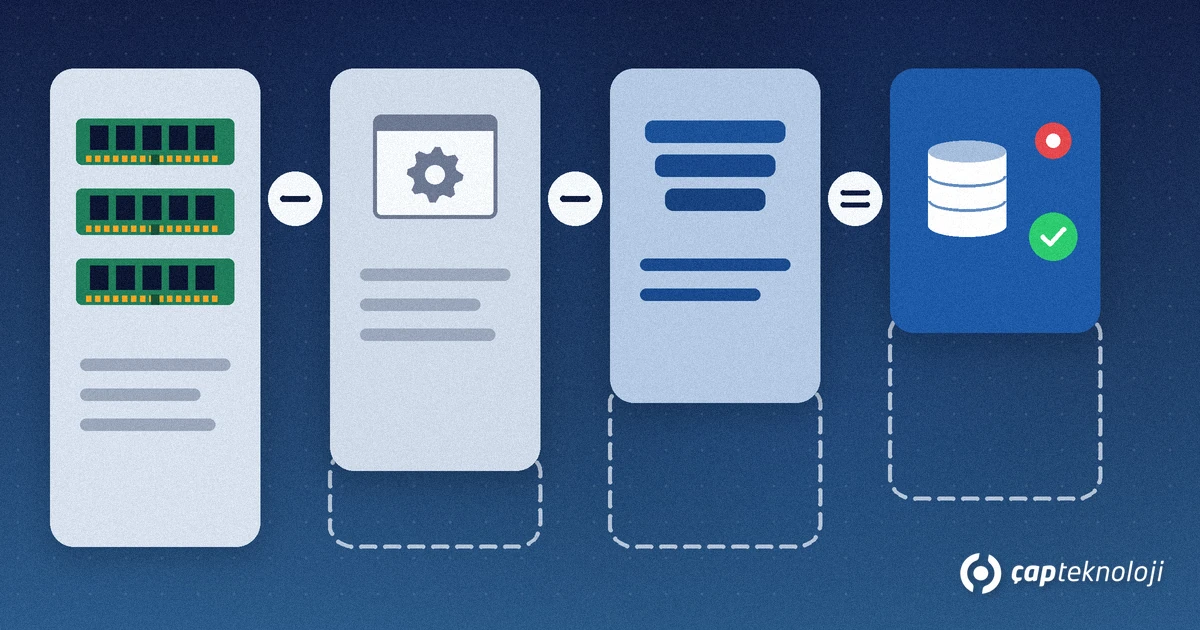
Microsoft describes two starting points. As a quick start, the recommended value is 75% of the available system memory that is not consumed by other processes, including other instances. The more detailed general approach is:
- Start with total physical memory. The RAM the operating system of the server or virtual machine can see.
- Subtract the other consumers. Memory needed by the operating system, applications on the same server and any other SQL Server instances.
- Subtract thread memory. Reserve the thread stack size multiplied by the calculated max worker threads; these allocations are outside max server memory control.
- Leave 25% headroom. Subtract a further 25% for allocations outside the limit, such as backup buffers, extended stored procedures and linked server providers.
- Enter what remains as the starting limit and tune it while watching the normal workload.
Microsoft states plainly that this is a generic approximation and results vary by server. If you can, watch the server’s memory consumption during normal working hours for a while before setting it. From SQL Server 2019 on Windows, setup also suggests a value for standalone instances based on the memory present at installation time.
How to change the setting step by step
The change needs no restart and takes effect immediately with RECONFIGURE. Still, lowering the limit makes SQL Server release cached pages, so it is safer to change it outside peak hours.
1. With SQL Server Management Studio
- In Object Explorer, right-click the server and select Properties.
- Open the Memory page; the minimum and maximum server memory values are shown there.
- Enter your calculated value in Maximum server memory (in MB) and save.
2. With T-SQL
The example below, as in Microsoft’s documentation, sets the limit to 12,288 MB (12 GB); use your own value:
EXECUTE sp_configure 'show advanced options', 1;
GO
RECONFIGURE;
GO
EXECUTE sp_configure 'max server memory', 12288;
GO
RECONFIGURE;
GO
To check the configured value and the value in use:
SELECT [name], [value], [value_in_use]
FROM sys.configurations
WHERE [name] IN ('max server memory (MB)', 'min server memory (MB)');
What to do in each scenario
| Scenario | What to do |
|---|---|
| The server is dedicated to a single SQL Server instance | Set an upper limit with the general approach above and monitor the normal workload. |
| The same server runs the ERP application, remote desktop users or other services | First measure their memory use at peak times, then set the limit so they keep enough room. |
| Several SQL Server instances on one server | Give each instance its own max server memory; the total must not exceed physical memory. |
| SQL Server runs in a virtual machine | As Microsoft recommends, also set min server memory so the virtualization layer does not take more memory back from the buffer pool than is acceptable. |
| Lock pages in memory (LPIM) is granted | Always set max server memory to a specific value; never leave the default. |
Common mistakes
- Setting the limit too low: it causes memory pressure and lost performance. A value near the minimum can even stop SQL Server from starting; Microsoft’s fix is to start the service with the
-fstartup option and restore the previous value. - Making min and max equal: Microsoft advises against setting them to the same or nearly the same value.
- Forgetting other instances: if no room is left for a second instance, the first one to get a workload takes most of the memory.
- Setting it and never looking again: review the value as users, data volume and applications on the server change.
- Blaming memory for every slowdown: missing or fragmented indexes and poorly planned queries show the same symptoms; check SQL Server index maintenance and the query side as well.
What to monitor afterwards
In the days after the change, look at available memory in Windows and at SQL Server’s own indicators. This shortened version of the query in Microsoft’s documentation shows the memory used by the SQL Server process and the memory pressure flags:
SELECT physical_memory_in_use_kb / 1024 AS sql_physical_memory_in_use_MB,
       process_physical_memory_low,
       process_virtual_memory_low
FROM sys.dm_os_process_memory;
A value of 1 in process_physical_memory_low or process_virtual_memory_low points to memory pressure. If the SQL Server error log shows error 17890, the message saying a significant part of the process memory has been paged out, revisit the limit and the other consumers on the server. If queries are still slow, SQL Server Query Store shows which ones regressed. If the database belongs to a Logo product, the SQL Server checklist for a slow Logo database collects the steps beyond memory.
Summary and checklist
SQL Server using a lot of memory is usually by design; the problem is the other work on the server being squeezed when there is no limit. Quick checklist:
- Is max server memory still at its default?
- Have the other consumers (operating system, applications, other instances) been measured?
- Was the value calculated from total RAM minus those consumers and the allocations outside the limit?
- Are min and max far enough apart, and is min server memory set on a virtual machine?
- Was the change made outside peak hours and verified in
sys.configurations? - Were the memory pressure indicators and the error log watched in the following days?
At ÇAP Teknoloji we help review memory and configuration on SQL Server machines, recommend settings for your workload and monitor the results. See our SQL Consulting page or get in touch with us.
Frequently Asked Questions
Is it normal for SQL Server to use most of the memory?
Yes, if the limit is set correctly. SQL Server keeps the data pages it reads in memory and, under normal circumstances, claims memory up to max server memory over time. The problem is the operating system and other applications on the same server running short when no limit is set.
Do I need to restart SQL Server after changing max server memory?
No. After changing it with sp_configure, the setting takes effect immediately with RECONFIGURE. Because SQL Server releases cached pages when the limit is lowered, it is safer to make the change outside peak hours.
Is there a quick starting value?
Microsoft’s recommended starting point is 75% of the available system memory not consumed by other processes and other SQL Server instances. The more detailed calculation subtracts thread memory and a further 25% for allocations outside the limit. Either way, tune the value while watching the normal workload.
Can min server memory and max server memory be the same?
Microsoft advises against setting them to the same or nearly the same value. min server memory is mainly useful on virtual machines and when several instances share a server; max server memory should be set on every installation.