



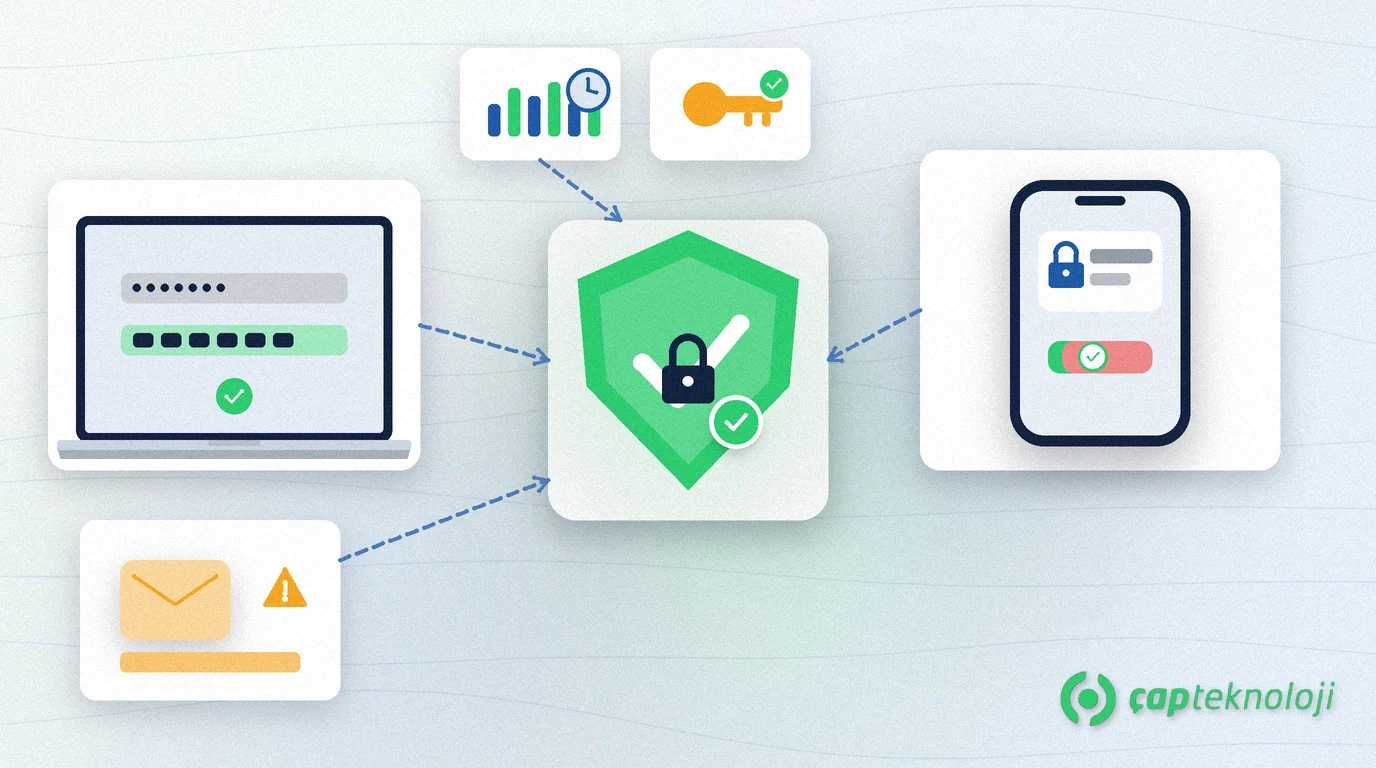
In short: Multi-factor authentication (MFA) strengthens sign-in by requiring at least two independent proofs instead of a password alone. For SMEs, adding MFA to email, VPN, accounting and cloud consoles largely stops stolen or guessed passwords from becoming full account takeovers. Done well, users barely notice; weak factors and blanket exceptions leave gaps.
Credential leaks and phishing remain common entry paths for small firms. When a single factor (password only) fails, the attacker owns the account. MFA cuts that chain with a second gate: a phone approval, authenticator code or hardware key is required before the session opens.
This article explains what multi-factor authentication means, which factors are stronger, how SMEs roll it out step by step and the mistakes that keep showing up.
What is multi-factor authentication?
Multi-factor authentication asks for at least two of: something you know (password), something you have (phone, hardware key) and optionally something you are (biometrics). The point is that a stolen password alone is not enough.
- First factor: usually a password or an identity-provider session.
- Second factor: authenticator app (TOTP), push approval, FIDO2/hardware key or (weaker) SMS code.
- Context: a new device, new location or higher risk score can trigger an extra challenge.
Microsoft’s how multi-factor authentication works guidance draws the same line: MFA on critical accounts is a baseline control because passwords alone are not enough. At ÇAP we scale that control to SMEs in our cybersecurity consulting work.
Why it matters for SMEs
Small teams often reuse the same mailbox for accounting, email and admin panels. A password harvested through BEC or phishing opens payment and customer data. In the scenarios we covered on business email compromise (BEC) and phishing simulation, MFA is the practical layer that stops a stolen password from being used.
Remote work and cloud apps also erase the old perimeter: trusting the office network is not enough. MFA carries the second gate wherever people connect and pairs with hardening your server and network infrastructure.
How do SMEs roll out MFA?
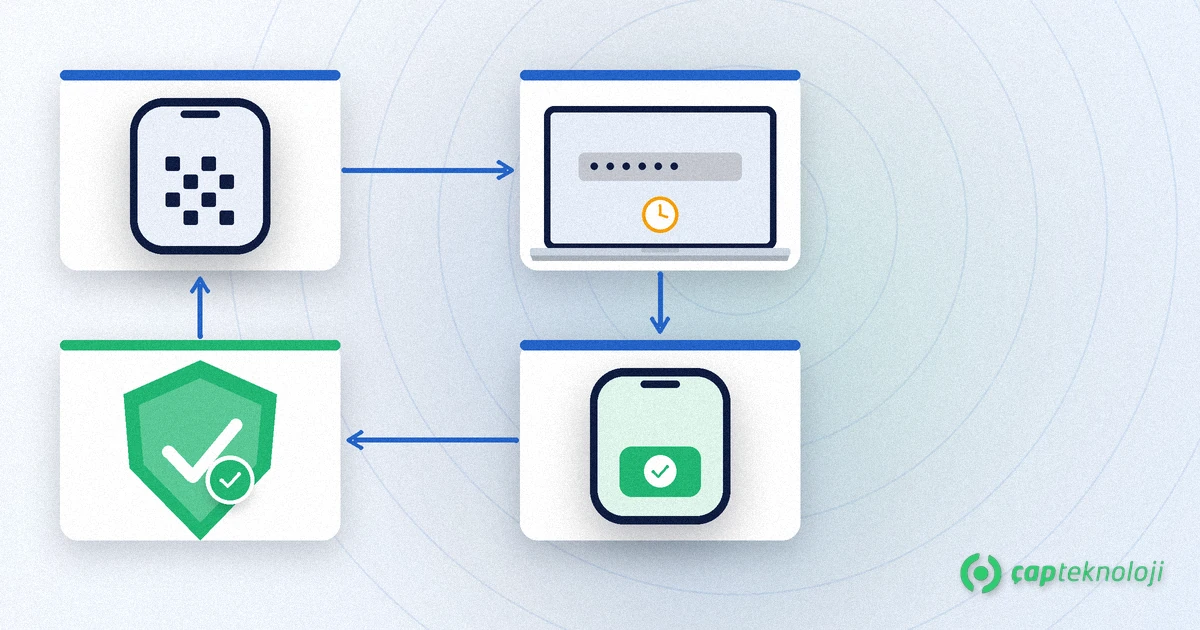
1. Prioritise critical accounts
Email (especially finance and executives), VPN / remote desktop, cloud storage, accounting/ERP consoles, domain and hosting panels come first. Roll out by risk, not “everyone on day one”.
2. Prefer push / authenticator; keep SMS as backup
Authenticator apps and push approvals resist SIM-swap and number-port attacks better than SMS. Hardware keys (FIDO2) are strong for admin accounts. Do not make SMS the sole primary factor; keep it as a limited backup channel.
3. Enforce it in the identity provider
In Microsoft 365 / Entra, Google Workspace or your IdP, make MFA mandatory for critical apps — not optional. Do not exempt new devices or admin roles.
4. Plan enrollment and backup codes
Users should finish authenticator enrollment (QR or setup key) in a controlled setting. Print recovery codes and store them securely; they may be the only unlock path if a phone is lost.
5. Write the exception and break-glass process
Define an identity-checked help-desk flow for lost phones. “Turn MFA off for a week” becomes a permanent hole; duration and approver must be explicit.
6. Measure and review
Track accounts still without MFA, failed second-factor attempts and help-desk volume monthly. It is a visible maturity signal in SMB cybersecurity.
Common mistakes
- SMS only: number-port and SIM-swap risk; move to authenticator or hardware keys.
- Admin exceptions: the most valuable accounts are the ones most often exempted “for urgency”.
- Unsupervised QR enrollment: a setup code left on a shared screen binds the account elsewhere.
- Legacy app bypass: basic auth or app passwords punch through MFA; disable the protocol or move to modern clients.
- No training: push fatigue (approving every prompt) is a social-engineering door; teach “unexpected prompt = deny”.
Multi-factor authentication is not a one-off project. As new apps appear, policy coverage must grow; second-factor enrollments for leavers must be revoked. Listing which accounts still sign in with a single factor after the first ninety days makes progress visible.
Do not measure success only by an “MFA on” checkbox. Shorter help-desk time, fewer suspicious sign-in alerts and a rising share of hardware keys on admin accounts are better signals.
Checklist before you start MFA
- Are critical apps and admin accounts listed?
- Is the primary factor authenticator / push / FIDO2?
- Are enrollment and backup-code steps written down?
- Who approves lost-phone / break-glass access?
- Are legacy basic auth and app passwords disabled?
- Were users taught “unexpected push = deny”?
Multi-factor authentication is one of the fastest ways to stop a password leak from becoming a breach. You can shape scope and roadmap with our cybersecurity consulting service or get in touch.
Frequently Asked Questions
Is MFA the same as 2FA?
In most SME conversations they mean the same gate: password plus a second factor. MFA is the broader term for two or more factors. What matters is that the second factor is truly independent.
Is SMS enough?
SMS beats no MFA, but SIM-swap and number-port risk remain. Prefer authenticator, push or a hardware key as the primary factor; keep SMS as a limited backup.
Should every app get MFA on day one?
No. Start with email, VPN, accounting and admin consoles. Expand by risk; otherwise help-desk load and shadow exceptions grow.
What if an employee loses their phone?
Use pre-printed backup codes or an identity-checked help-desk flow. Prefer a timed, approved, logged exception over turning MFA off indefinitely.