



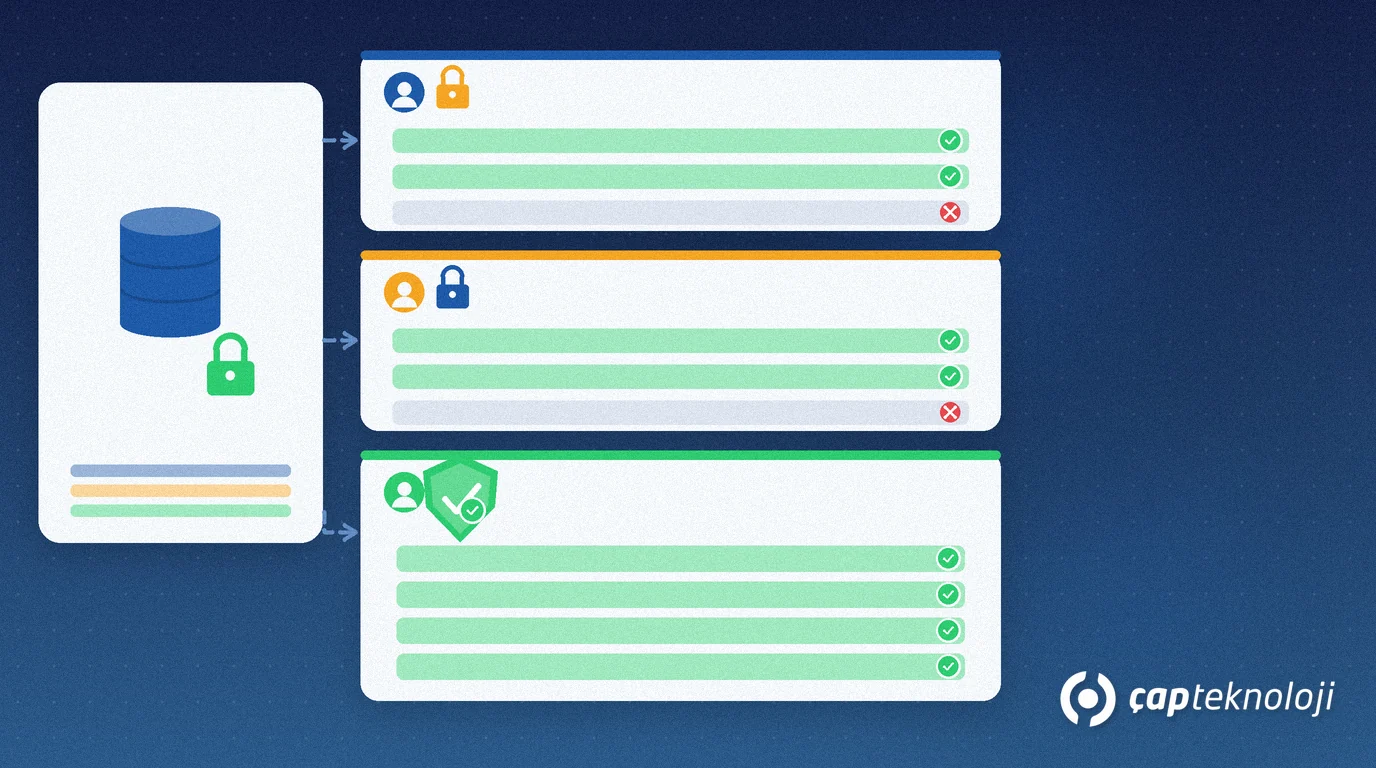
In short: Power BI row-level security (RLS) is model-based access control that lets you share one report while each user only sees the rows their role allows. SMEs use roles, DAX filters and a workspace publish checklist to stop region, branch or customer data leaking without cloning dashboards.
Sales should see only their region; finance may need every branch; field reps should see only assigned dealers. Copying a dashboard per audience raises maintenance cost and drifts numbers. Power BI row-level security keeps one dataset and one report, then cuts rows by role.
This guide explains what RLS is, how roles and DAX filters differ, and the publish checklist an SME should run before go-live.
Why does Power BI row-level security matter?
As self-service BI spreads, more people open the same workspace reports. Without filters, a sales rep can see another region’s prices or stock, and a branch manager can open another branch’s costs. That is a privacy and a decision-quality risk. Self-service BI needs certified datasets and workspace discipline; Power BI row-level security is the row layer of that discipline.
Microsoft’s guide to row-level security with Power BI describes roles defined in the model, filters written in DAX, and users assigned to roles in the Power BI service after publish. After you build KPIs (Power BI dashboard for SME KPIs), RLS is the step that makes sharing safe.
What is RLS? Roles, filters and the workspace
Row-level security (RLS) applies role-based filters on model tables so a user’s queries return only permitted rows. It is not hiding visuals; it cuts data in the model.
A role groups filter rules under a name such as “Sales_Marmara” or “Finance_All”. A user can belong to one or more roles.
A DAX filter defines which rows the role sees. Static filters use a fixed region code; dynamic filters map the signed-in user (UPN) through a security bridge table.
| Concept | What it does | Where it lives | SME tip |
|---|---|---|---|
| Role | Groups the same filter set | Power BI Desktop model view | Keep names in business language (region / branch) |
| DAX filter | Cuts which rows appear | Table filter under the role | Start static, then add dynamic user mapping |
| User assignment | Who gets which role | Power BI service (workspace) | Assigned after publish; not persisted only in Desktop |
| Workspace role | Edit / publish rights | Workspace membership | RLS applies to viewers; admins can bypass the model |
A step-by-step Power BI RLS rollout
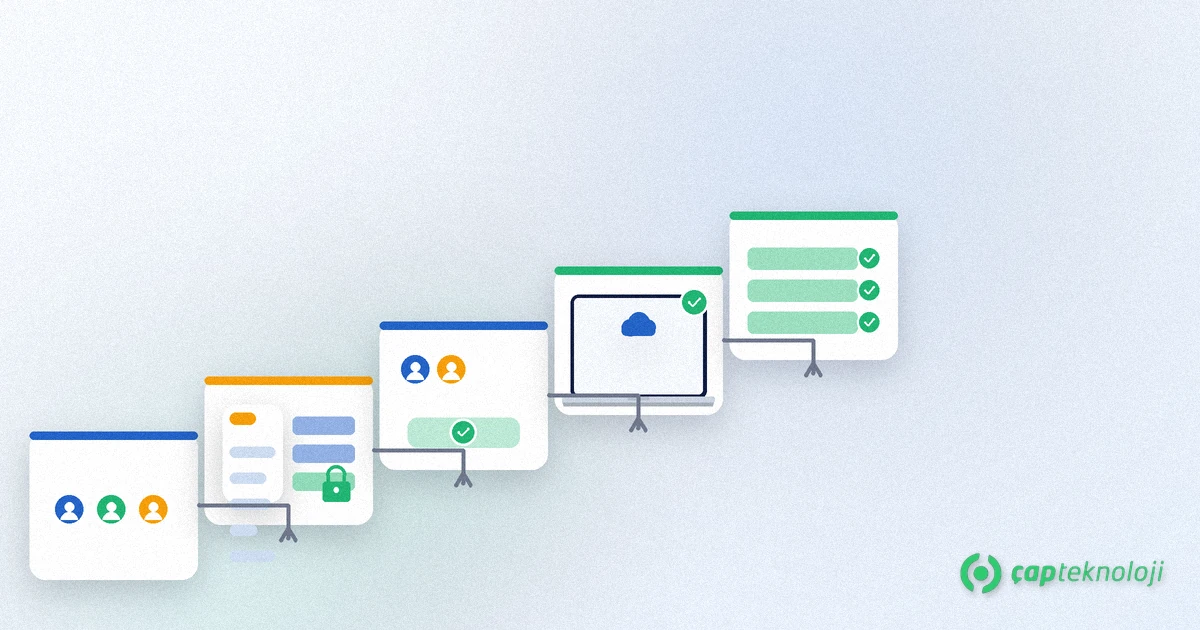
1. Decide which rows stay with whom
Write down dimensions such as region, branch, customer group or product family. Fix sample rows each role must see and must not see. Without that inventory, DAX grows randomly. If the model is messy, simplify dimensions first with a business intelligence consulting pass.
2. Create roles in Power BI Desktop
In Model view, open Manage roles and add one role per business audience. Use clear business names. Anyone who opens the same report but must see different rows needs a separate role.
3. Add a DAX filter on the right table
Attach the filter to the table that carries the grain (for example Sales or Customer). A static filter might require Region equals a fixed value. A dynamic pattern maps the user email to a bridge security table. Microsoft Learn documents USERNAME / USERPRINCIPALNAME patterns; adapt column names to your model before you paste anything.
4. Test with “View as role”
In Desktop, view the report as each role and confirm the expected rows. If every row still appears, the filter is on the wrong table or relationship. Skipping this step is the most common cause of live leakage.
5. Publish the dataset and assign users
After publish, open dataset security in the Power BI service and add members to roles. Workspace Admins, Members and Contributors can bypass RLS; only Viewers are constrained by row filters. Plan sharing with that difference in mind.
6. Make the publish checklist operational
Whenever you add a column or relationship, re-test RLS. When people change jobs, update role assignments. Turning this into a monthly routine under reporting consulting keeps a one-off setup alive.
Common mistakes
- Page filters only: A visual filter is not RLS; shared viewers can still reach other rows.
- Wrong table: If relationship direction is wrong, the filter does nothing or removes everything.
- Testing as an admin: Workspace admins bypass RLS; always verify as a Viewer.
- Forgetting assignments: Desktop roles arrive empty in the service until you add users.
- Cloning reports: One pbix per region multiplies updates; RLS keeps a single model.
Power BI row-level security checklist
- Is the role inventory (region/branch/channel) written down?
- Does each role have a Desktop DAX filter verified with “View as”?
- Is the dataset published to the right workspace?
- Are Viewer users assigned to roles in the service?
- Do you know that Admin/Member accounts bypass RLS?
- Is there a regression test when the model changes?
When Power BI row-level security is set up correctly, you share one dashboard safely, cut maintenance and stop row leakage in the model. ÇAP Teknoloji plans RLS with you from role design and DAX filters through the publish checklist as part of your BI work. See our business intelligence (BI) consulting or contact us to review your Power BI model.
Frequently Asked Questions
How is Power BI row-level security different from a visual filter?
A page or visual filter only hides data on that screen; without a model role, shared users may still reach other rows. RLS cuts rows in the model with DAX so queries return only permitted rows.
Do workspace admins see RLS filters?
No. Workspace Admins, Members and Contributors can bypass dataset RLS. Always verify with a Viewer account that the row filter actually applies.
What is the difference between static and dynamic RLS?
Static RLS cuts rows with a fixed value (for example one region code). Dynamic RLS maps the signed-in user’s UPN or email through a security table so each person sees different rows. Microsoft Learn documents both patterns.
Is defining roles only in Desktop enough?
No. Roles and DAX are authored in Desktop, but user-to-role assignment happens in the Power BI service after publish. Without that assignment roles stay empty and the filter never applies.