



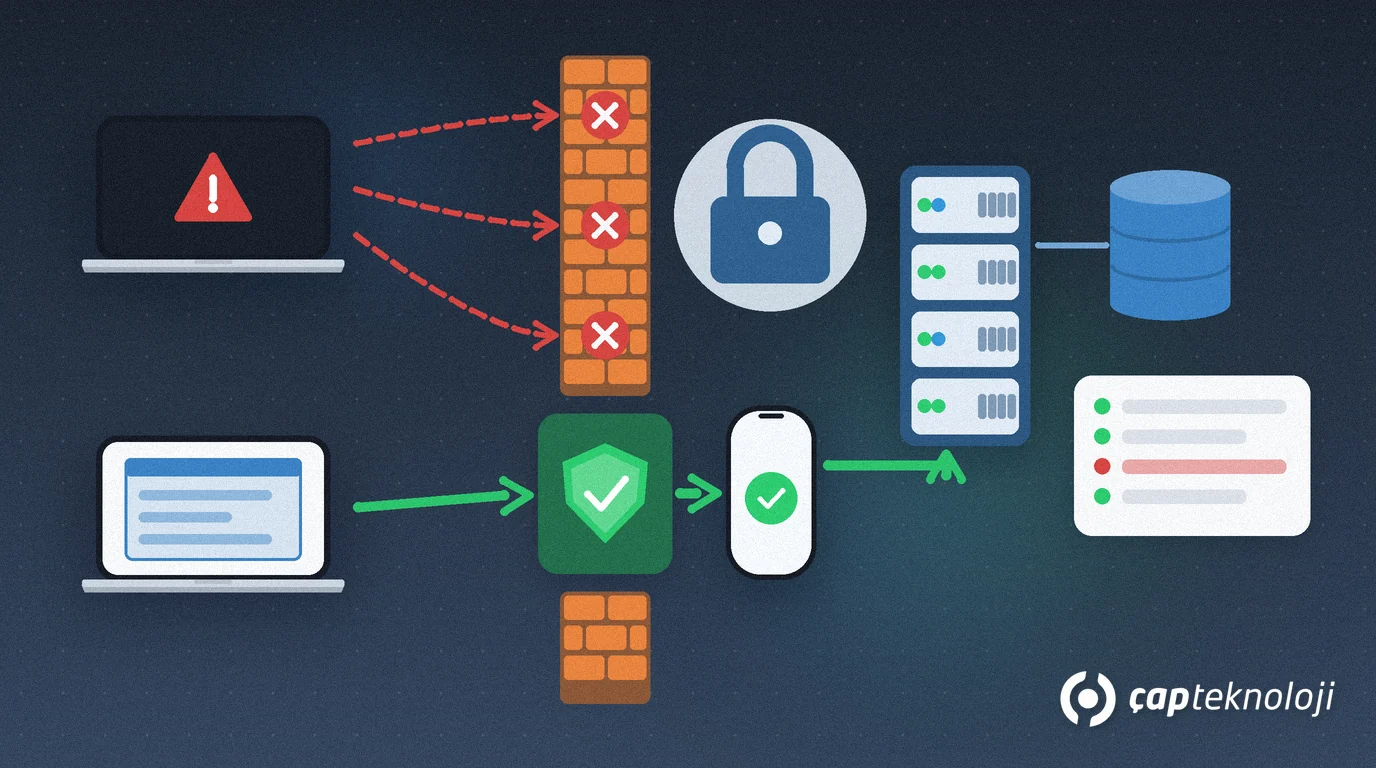
In short: RDP security means protecting Remote Desktop connections to your Windows servers against unauthorised access. The most important rule: never expose the RDP port directly to the internet; give remote access through a VPN or a Remote Desktop Gateway (RD Gateway), combined with multi-factor authentication and account lockout.
In many SMEs, Logo or another ERP runs on a terminal server, and branches, the external accountant and home workers connect to it with Remote Desktop. On installation day port 3389 is forwarded from the router to the server “just to get it working”, and it stays that way for years. This guide shows how to secure that setup step by step without stopping daily work.
Contents
- What is RDP security?
- Ways to allow outside access
- RDP security in 7 steps
- Is changing the port enough?
- What to do if you suspect an attack
- Summary and checklist
What is RDP security and why does it matter so much?
RDP (Remote Desktop Protocol) is Microsoft’s protocol for connecting to the desktop of a Windows computer over a network, and it uses TCP port 3389 by default.
An RDP sign-in screen that is open to the internet is a door that automated scanners from anywhere in the world can reach. Attackers take two routes there: trying weak or leaked passwords, and exploiting unpatched RDP vulnerabilities. Once inside, an attacker can act like an administrator on the server that holds your ERP database, which is also a common starting point for ransomware. That is why RDP security is the first item of server security in an SME.
Which way of allowing outside access to Remote Desktop is safer?
For most businesses, switching off remote work is not an option. The question is which door the access comes through:
| Method | What it does | Assessment |
|---|---|---|
| Opening port 3389 directly to the internet | The sign-in screen is visible to everyone | Do not use it; it is directly exposed to password guessing and RDP vulnerabilities |
| Moving RDP to another port number | Slightly reduces visibility | Not a security control on its own; scanners find other ports too |
| VPN + multi-factor authentication | Users first enter the company network through an encrypted tunnel, then open RDP | Common and suitable solution for SMEs |
| RD Gateway + multi-factor authentication | Routes RDP traffic over HTTPS (443) through a single, controlled entry point | Strong option for setups with many remote users and terminal servers |
Whichever method you choose, the principle is the same: the RDP sign-in screen must not be directly visible from the internet, and the entry point must ask for more than a password.
How to achieve RDP security in 7 steps
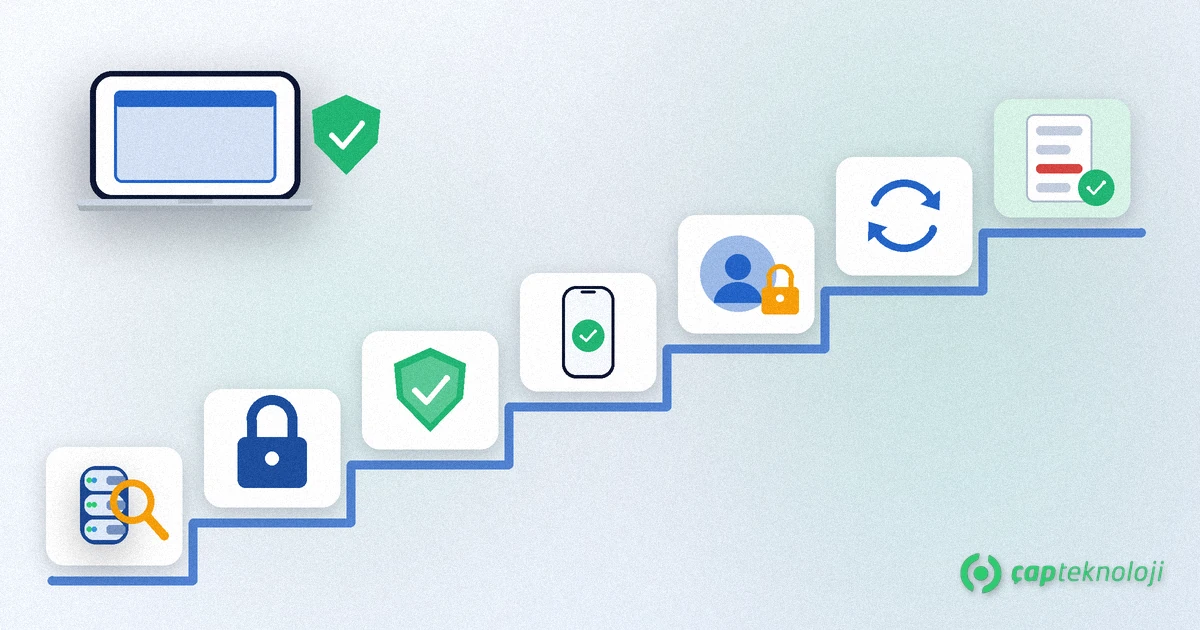
1. Find machines with RDP enabled and any port forwarding
Start with an inventory: which servers and PCs have Remote Desktop enabled, and which ports are forwarded inwards on the router or firewall? A forgotten forwarding rule left over from installation is usually the biggest hole. For the wider infrastructure, use our server and network infrastructure checklist.
2. Close 3389 to the internet and move access to a VPN or RD Gateway
Remove the RDP forwarding rule from the firewall and connect remote users through a VPN or RD Gateway. Pilot the change with a few users first, and close the old forwarding once everyone can connect the new way. Include branch and accountant connections in the list.
3. Require multi-factor authentication
A password alone is not enough; one leaked password opens the door. Ask for a second verification step at the VPN sign-in or at the RD Gateway. RD Gateway can work with Microsoft Entra multifactor authentication through the NPS extension. For roll-out and user communication, see our multi-factor authentication guide.
4. Keep NLA on and limit who can use RDP
Network Level Authentication (NLA) verifies the user before the remote session is created; turn it on if it is off. Keep only the people who really need to connect in the “Remote Desktop Users” group. Remove shared accounts, do not use the administrator account for daily work, and disable leavers’ accounts on the day they leave.
5. Apply account lockout and a strong password policy
In KB5020282, Microsoft gives 10/10/10 as its baseline recommendation for account lockout: an account is locked for 10 minutes after 10 failed attempts within 10 minutes. This behaviour affects network sign-ins such as RDP. The October 2022 updates also added a policy that allows the built-in local Administrator account to be locked out; on existing servers you have to enable these settings yourself. Combine lockout with long passwords that are hard to guess.
6. Do not delay updates
RDP has had critical vulnerabilities that allowed remote code execution; BlueKeep (CVE-2019-0708), published in 2019 and affecting older Windows versions, is a well-known example. Put server and VPN device updates on a schedule, and never expose out-of-support Windows versions to remote access. For planning, read our article on patch management.
7. Monitor sign-in logs and keep backups separate
In the Windows Security log, event 4625 records a failed sign-in, and event 4624 with logon type 10 records a successful Remote Desktop sign-in. Set alerts for many 4625 events in a short time or unexpected sign-ins outside working hours. For the worst case, keep backups of the ERP database away from the server and test restores; details are in our SQL Server backups guide.
Is changing the RDP port enough?
No. Using a port other than 3389 may cut down some automated attempts, but the sign-in screen is still on the internet. Because port scanners can check every port, this is not a security control, just a little obscurity. Changing the port does not replace a VPN or RD Gateway, multi-factor authentication and account lockout.
What should you do if you suspect an attack over RDP?
Take these signs seriously: user accounts you do not recognise, accounts added to the Administrators group, Remote Desktop sign-ins at night, a disabled antivirus or thousands of failed attempts in a short time. If you see them:
- Cut the server’s internet connection, but do not shut it down; the logs are needed for the investigation.
- Change the passwords of administrator and RDP accounts from a clean device.
- Check newly created accounts, scheduled tasks and installed programs.
- Confirm that backups are intact and independent of the server.
- If personal data was affected, assess your legal notification duties and get expert support.
Summary and RDP security checklist
- Is any RDP port still reachable directly from the internet?
- Does remote access go only through a VPN or RD Gateway?
- Is multi-factor authentication required at the entry point?
- Is NLA on and is the Remote Desktop Users group up to date?
- Does the account lockout policy apply, including to the administrator account?
- Are the server and the VPN device up to date?
- Are events 4625 and 4624 monitored, and are backups kept separately?
Put simply, RDP security is not about banning remote work but about offering Remote Desktop through one well-protected door. At ÇAP Teknoloji we can review your current remote access setup, plan the move to a VPN or RD Gateway without disrupting your work and implement it as part of our cybersecurity consulting; reach us via our contact page.
Frequently Asked Questions
Why is opening the RDP port to the internet dangerous?
Automated scanners can reach an internet-facing RDP sign-in screen from anywhere. Attackers try weak or leaked passwords there and attempt to exploit unpatched vulnerabilities. That is why remote access should go through a VPN or an RD Gateway.
Is a VPN or an RD Gateway the better choice?
Both are secure when used correctly. For SMEs with few remote users, a VPN with multi-factor authentication is often enough. With many remote users and terminal servers, an RD Gateway brings RDP traffic together over HTTPS at a single, controlled entry point.
What is NLA and should it be on?
Network Level Authentication (NLA) verifies the user before the remote session is created, so unauthenticated connections never reach the session screen. Current Windows clients support NLA, so keep it switched on.
What account lockout settings should I use?
In KB5020282, Microsoft gives 10/10/10 as its baseline recommendation: an account is locked for 10 minutes after 10 failed attempts within 10 minutes. On existing servers, enable this policy and the setting that allows the built-in Administrator account to be locked out manually.