


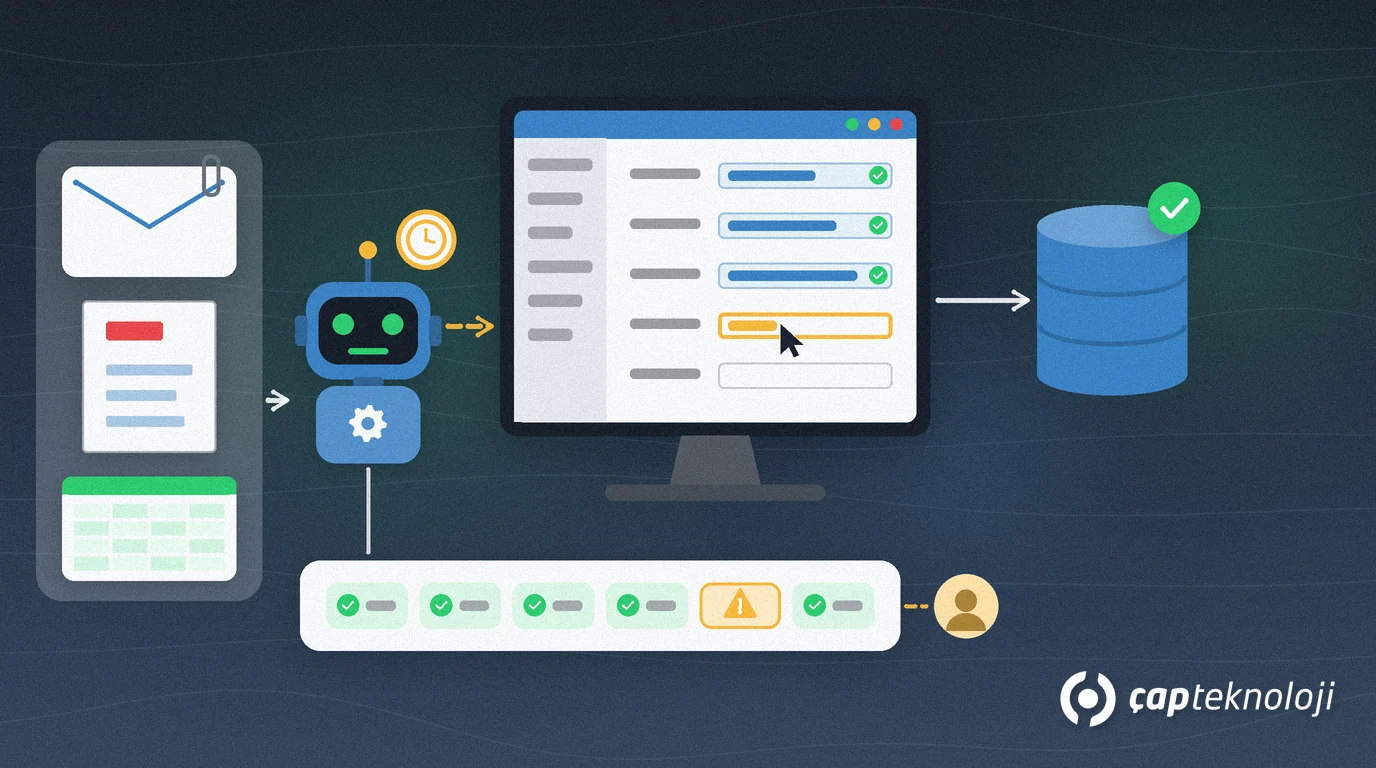
In short: Robotic process automation (RPA) means a software robot performs the repetitive, rule-based work an employee does on screen, using the same screens. For SMEs the best candidates are tasks with digital input that repeat often, run on stable screens and have few exceptions. If your systems offer an API or a ready-made integration, use that first and bring in RPA where those options do not exist.
In many companies the day is filled with the same copy and paste: orders received by email are typed into the ERP, files are downloaded one by one from bank or supplier portals, and rows from Excel sheets are re-entered on another screen. This work takes time and fatigue turns it into errors. Automating it is one of the first ideas on any digital transformation journey; the real question is which work to hand to a robot.
Contents
- What is robotic process automation (RPA)?
- RPA or integration?
- Which tasks suit a software robot?
- Your first RPA project: 7 steps
- Common mistakes
- Summary
What is robotic process automation (RPA)?
Robotic process automation (RPA) is an approach to automating business processes with software robots that repeat, according to recorded rules, the steps a person performs in applications with keyboard and mouse.
The “robot” is not a physical machine but a program running on a computer. According to Microsoft’s Power Automate desktop flows documentation, desktop flows broaden the RPA capabilities in Power Automate to automate repetitive desktop processes and are meant for simple or complex rule-based tasks. The documentation gives the example of an employee automating data entry on an ERP system. The robot can work with legacy applications such as terminal emulators, modern web and desktop applications, Excel files and folders, and it recognises what is on screen through UI elements, images or coordinates.
RPA or integration: which is right when?
RPA is not the only option. The same job can often be solved with a built-in ERP feature, an API integration between two systems or a cloud workflow. Here is how they compare:
| Method | How it works | When it fits | Watch out for |
|---|---|---|---|
| Built-in ERP features | Standard imports, approval flows or scheduled jobs | When the ERP already covers the need | Review existing features first |
| API integration | Systems send data directly to each other | When both sides offer an API or a data exchange service | Needs development, but screen changes do not affect it |
| Cloud workflow | Triggered by an event, instantly or on a schedule, works through connectors | Between email, files and cloud apps | Limited to apps that have a connector |
| Robotic process automation (RPA) | The robot uses the screen like a person | No API, legacy applications, web portals | Can break when a screen changes; needs maintenance |
The rule is simple: if data can travel from one system to another through an API, that route is more robust. Our article on ERP integration covers the details. RPA fills the gap where integration is not possible or costs more than the task is worth.
Which tasks suit a software robot? A 6-question selection test
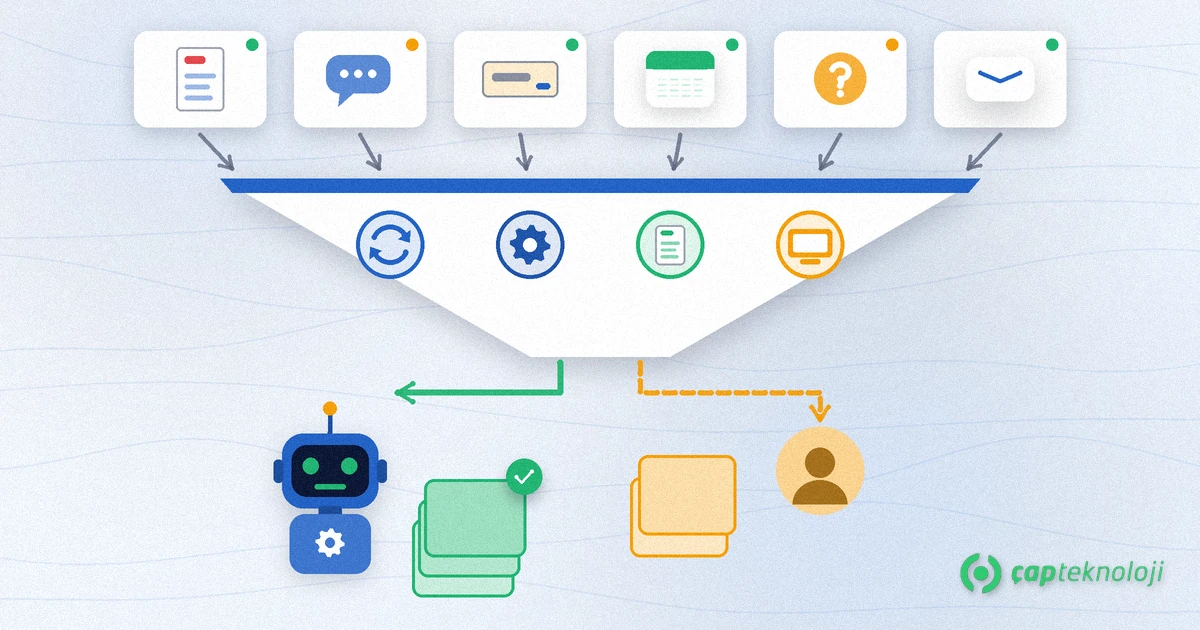
Ask these six questions before you hand a task to a robot. If most answers are “yes”, the task is a good candidate; the more “no” answers you get, the better it is to leave the work with people.
- Does it repeat? Is the task done daily or weekly with the same steps?
- Is it rule-based? Can the decisions be written down clearly, for example “if the amount is above a set value, send it for approval”?
- Is the input digital and structured? Does the data come from Excel, CSV, emails with a fixed template or a system screen? Handwriting and documents with a different layout every time are poor candidates.
- Are the screens stable? If the application interface changes often, the robot needs frequent maintenance too.
- Are exceptions few and defined? Is it clear who takes over when the robot meets a case it does not recognise?
- Is there a more robust route? If an API, a ready-made integration or a built-in ERP feature exists, consider it first.
Usually suitable: entering order details from templated emails into the ERP, downloading files from supplier or bank portals and filing them in folders, comparing records in two systems and listing the differences, preparing recurring report files.
Usually not suitable: answering customer complaints, deciding on credit limits or prices, correspondence that involves negotiation and documents that need interpretation each time. Here the robot can at most prepare the work; a person makes the decision.
How do you set up your first RPA project? 7 steps
- Write the process down as it is. Together with the person who does the work, note every screen, click and decision step by step. Measure how often the task is done and how long it takes using your own records.
- Run the selection test and narrow the scope. For the first project choose the most repetitive part with the clearest rules rather than the whole process.
- Fix the process first. Remove problems such as unnecessary approvals or double entry before automating; giving a broken process to a robot only makes the errors faster.
- Give the robot its own user and least privilege. The robot should not run under an employee’s personal account. Do not write passwords into the flow; Microsoft notes that sensitive inputs can be hidden from the run logs. For account security, see also our article on multi-factor authentication.
- Design the exception path. When the robot meets a record it does not recognise, it should stop, put the record into a queue and notify the responsible person.
- Test in a test environment. Run the flow with a copy of real data and compare the results with the manual work.
- Go live, monitor and assign an owner. Every robot needs a process owner and a technical owner. Retest the flow after ERP or portal updates.
Should it run attended or unattended?
In Microsoft Power Automate a desktop flow can run in attended or unattended mode. In attended mode the robot runs in the employee’s open session while the user is at the computer. Unattended mode is meant for work that needs no human supervision.
| Aspect | Attended run | Unattended run |
|---|---|---|
| Who is present? | The employee starts the robot as part of their own work | Nobody; the flow is triggered on a schedule or by an event |
| Session | The user’s open session | Power Automate opens a remote desktop (RDP) session, keeps the screen locked and signs out when done |
| Machine requirement | The user’s computer | No user may be signed in on the machine; the flow cannot run with elevated privileges |
| Licence | An appropriate Power Automate licence | Additionally an unattended add-on |
Microsoft’s page on unattended desktop flows also notes that a different screen resolution can stop the robot from finding its target element, so fix the resolution on the unattended machine.
What are the common mistakes in RPA projects?
- Automating the screen when an API exists: you end up with a fragile solution although a sturdier one was available.
- Starting without measuring: if today’s time and error count are unknown, the benefit cannot be shown either.
- Running the robot under a personal account: when the employee leaves or changes the password, the robot stops and the audit trail gets confusing.
- Forgetting exceptions: if only the “everything is fine” path is planned, the flow stops at the first unusual record.
- Not planning maintenance: even a small interface change can stop the robot; share the update calendar with the robot owner. Mandatory changes such as regular e-invoice and e-ledger updates belong in that calendar too.
Summary: where should you start with RPA?
Robotic process automation is a practical way to free people from repetitive screen work, but it is not the right tool for every task. Look at APIs and built-in ERP features first, then run candidates through the six-question test, start with a small task with clear rules, give the robot its own account and hand exceptions to people. At ÇAP Teknoloji we can review your processes with you and decide which work suits a robot and which suits integration as part of our digital transformation consulting; reach us through our contact page.
Frequently Asked Questions
What is the difference between robotic process automation and API integration?
With API integration, systems send data directly to each other and screen changes do not affect it. With RPA, a software robot uses the application’s screen like a person. If an API exists it is usually the more robust route; RPA fills the gap in legacy applications and web portals that have no API.
Is RPA artificial intelligence?
No. Classic RPA follows rules written in advance and repeats the same steps. For work that needs interpretation, judgement or negotiation the decision should stay with a person; the robot can at most collect and prepare the data.
Can robotic process automation be used with ERP systems?
Yes. Microsoft’s Power Automate documentation gives automating data entry on an ERP system as an example of desktop flows. Still, check your ERP’s own import features and integration options first; where they exist they are usually more robust.
What does an unattended software robot need?
In Microsoft Power Automate, unattended runs require an additional unattended add-on. No user may be signed in on the machine the robot uses; Power Automate opens a remote desktop session and closes it when the work is done. The flow cannot run with elevated privileges, and a fixed screen resolution is recommended.